
How to Make a PowerPoint Presentation from Scratch: A Lesson for Beginners
How to make a PowerPoint presentation quickly and stylishly? Step-by-step guide: structure, working with templates, animation and export. Everything from blank slate to display.

Making a presentation in PowerPoint: step-by-step instructions, trends for 2025, tips and life hacks.
Once upon a time, PowerPoint used WordArt and vertical blind animation to tell the world about a company and product. In 2025, presentations have become a full-fledged tool for business, marketing and PR: here creativity meets data, and neural networks speed up the launch of ideas. ChatGPT and Gamma.app will create the basis, DALL·E will draw the background image, and all you have to do is polish it up and don’t forget about the style. In this article, we'll show you how to make a presentation that you won't want to close on the second slide. We went over everything in detail: how to prepare, what to write, how to format it, what to entrust to the neural network, and what trends will be dictated by 2025.
Introduction to PowerPoint
PowerPoint (Power Point, PP) is a Microsoft Office program for creating presentations. They are needed to illustrate the speech, visualize data in the form of charts, graphs, cases broken down by numbers, and also to turn a multi-page report into a living, understandable guide: here we have an increase of 50%, here the indicators are 15% higher, and here is a risk zone, we need to push.
But their main advantage: versatility. Presentations can be:
-
use at webinars, online conferences and calls so as not to lose your thoughts, not to read from a piece of paper, and so that viewers can clearly see that, for example, marketer Anton spent 200 thousand on a target, and exactly three applications came in - from his mother from different accounts;
-
display on the screen in the meeting room or print and post on the board for face-to-face discussion if broadcasting capabilities are limited and there are interruptions in the Internet;
-
send by e-mail to clients and partners - after calls as a brief summary of the issues discussed, as well as to those who were not at the meeting to bring them up to date and visualize key points;
-
use as a ready-made packaging of a product, service, idea, especially if there is no website/landing page, marketing kit or brand book yet.
“Power Point” can be called a standard here: everyone opens it, everyone works with it, it is displayed stably and, as a rule, does not lose its layout, even if the file is opened on a projector made in 2010. It also features a presenter mode: the audience sees only the slides, while the speaker has access to tips, notes, and show times.
In 2025, a subscription to Microsoft 365 is not available for payment directly from Russia, only through intermediary services or with a foreign card. Therefore, just in case, we have collected several free analogues:
-
Google Slides is a cloud service for creating and editing documents directly in the browser.
-
WPS Office is an alternative to MS Office; the WPS Presentation editor supports PPT and PPTX formats.
-
LibreOffice is an open office suite with the Impress presentation editor, compatible with PowerPoint.
But since all MS Office programs, including PP, work without restrictions for existing users, let’s go through the steps of creating a presentation in this program.
Preparing to create a presentation
You don’t need to open PowerPoint just because everyone else is doing it, otherwise you won’t end up with a presentation, but a beautiful nonsense with clipart and “About the company” headings. Before you click Create Slide, consider this:
-
Why are you doing this? Seriously, what do you need a presentation for? Are you selling a new product, providing training, or pitching an idea to investors to gain their support? Each option will have its own logic and tone.
-
Who will you show it to? Colleagues and subscribers on social networks, the director of a department or a tired buyer at a tender? The clearer the portrait of the audience, the easier it is to get into their mood.
-
What should a person do as a result? Sign an agreement, follow a link, stop asking the same questions in the work chat? It is important to understand here that a presentation is a working tool, the purpose of which is to encourage action.
Trend 2025: Data Storytelling, stories based on data. People love to tell stories and quickly lose attention if they are presented with bare numbers. If you just listed the company's benefits, it's a flyer. If you told how you saved a client from a logistics collapse in three days, this is already a presentation, and they will watch it to the end.
Now let's move on to action:
-
collect facts, figures, cases and examples that need to be shown;
-
write out the structure of each screen on paper, in notes or in Google Docs;
-
think about what charts, graphs and illustrations you will need;
-
remove everything unnecessary, leave the most important.
And only then open PowerPoint.
Create a new presentation
You can find and download a ready-made template, but it’s better to create one for yourself right away. Open the program and select Blank Presentation. Don't worry—you'll add style and branding elements later.
Here's what to do:
-
Create a title slide. It should contain the title of the work (for example, “Three-liter jar”), a subtitle (“Your money is under control”), and, if necessary, a logo or the name of the speaker. This is the first point of contact with the viewer; it is important to immediately interest and attract attention.
-
Set up the structure. You can create slides with the right mouse button or through the “Home” → “Create Slide” tab, delete them with the mouse or the Delete button. Use different layouts (Header and Object, Comparison, Header Only) so that even zoomers with a clip mentality won't get bored.
-
Divide the material into blocks using the “Add section” button: “About the company”, “Problems”, “Hypotheses”, “Figures”, “Conclusions”, this will make it easier for you to navigate the structure and move from topic to topic if, for example, the audience decides to take another look at the problem.
-
Save. It’s best to turn on autosave: “File” → “Other” → “Options” → “Saving”. Otherwise, it will be a shame to lose a large piece of work.
Don’t waste time searching for the perfect template, start with the basic grid, and we’ll create the visual in the next section. In 2025, Bold Minimalist is welcome: clean backgrounds, bright images, large fonts, minimal visual clutter.
Presentation design
Basic rules: everything that can be leveled, we level. Everything that can be simplified, we simplify. In the design, use corporate colors, if there is a brand book, take it from there, if not, open the company’s website in Figma (via the html.to.design plugin) or in a browser extension like Colorzilla and use an eyedropper to remove the colors of the logo, headers, and background. Choose 2-3 primary colors + 1 accent color (for example, bright for buttons or key numbers). You don't need more than four shades; visual noise will be distracting. Add colors through the Design tab so you don't have to manually click each time. To do this, click on the arrow in the “Options” → “Colors” → “Customize colors” block, set text, background and accent shades and save, for example, under the name “Horns and Legs LLC brand colors.” After that, when loading shapes and texts, PowerPoint itself will recolor them in the desired range.
You also need to add a logo: it can only be on the title and last slide, you can leave it on all of them, but then it should be placed in the corner, perhaps made translucent. To make the logo consistent, use the “Slide Master” tool (the “View” tab): on the left side of the screen, select the topmost slide - this is the main template from which the rest are inherited. Next, through “Insert” → “Pictures”, add a logo, adjust its position, transparency, other parameters, make sure that it does not overlap the text, and then close the sample mode. After this, the picture will automatically appear on all slides.
Design trends 2025:
-
Dark background. Works great for evening events and online presentations: the slideshow looks stylish and reduces eye strain for viewers. The main thing is not to forget about contrasting text.
-
Large sans serif font. If you're selling modern, high-tech products and services rather than antiques, bold sans-serif fonts will remove unnecessary politeness and make your presentation clearer.
-
Numbers are in the foreground. Instead of hiding them on the chart, highlight them in bold, large font size and underline them with contrasting colors so that the statistics become their own visual element.
Working with text
We are not writing an article for Wikipedia, long foot wraps of text are not needed, no one will read them. Here's what's important:
-
Less = better. Write not in paragraphs, but in succinct one-line abstracts. If it doesn't fit, think about how to cut it down. This is so bad: “Our team has demonstrated strong growth in a number of areas over the last calendar year...”, this is good: “Growth in key areas: +23% per year.”
-
One slide = one thought. Do you want to immediately insert metrics, indicators and a photo of the director with a cat? It’s better not to, after watching such a screen the audience will only remember the cat. There should be one focal point, the rest is in the speaker’s speech.
-
The fonts are clear and simple. It is better to choose the main one without serifs and design frills so that it is easy to read from any screen. These are, for example, Arial, Calibri, Segoe UI, Helvetica - they are like an old T-shirt, a little tired, but still the most comfortable. For titles, you can choose brighter and clearer ones, for example, Impact, Century Gothic. Size: minimum 18 pt if you don’t want it to be read with a magnifying glass on Zoom. Don't use rare fonts like Lobster or Curlz - the recipient may simply not have them, and your entire design will ride off into the sunset.
-
Layout - so that the information is easily perceived. If a slide has 18 lines of solid text, most likely they will flip it and move on. Use lists, icons, padding, images, emphasis, and make sure the overall story is maintained.
-
Speak the audience's language. Do not overuse abbreviations, corporate terms and inside jokes if the presentation is for potential clients or, for example, students. The text: “MRR > 10k, CAC is stable, but LTV has dropped” will only be understood by your analyst. Adaptation also concerns intonation; if at a startup conference you can say: “We demolished the market in six months,” then when discussing a government contract it is better to stick to an official tone.
Adding media
If text = skeleton, then multimedia = muscles, the main thing is not to turn the document into a TikTok digest. We'll tell you what you can do.
-
Pictures. They are added via “Insert” → “Pictures” → “This device” / “Images on the Internet”. It is best to use real photographs of products, production, and team. If not, then take it from stock, but look not for “smart man with glasses,” but for something more specific and appropriate to the topic. Trend 2025: illustrations from neural networks (Midjourney, DALL·E) - but only with modifications in a graphic editor. The raw generated images often look creepy (be sure to count your fingers!).
-
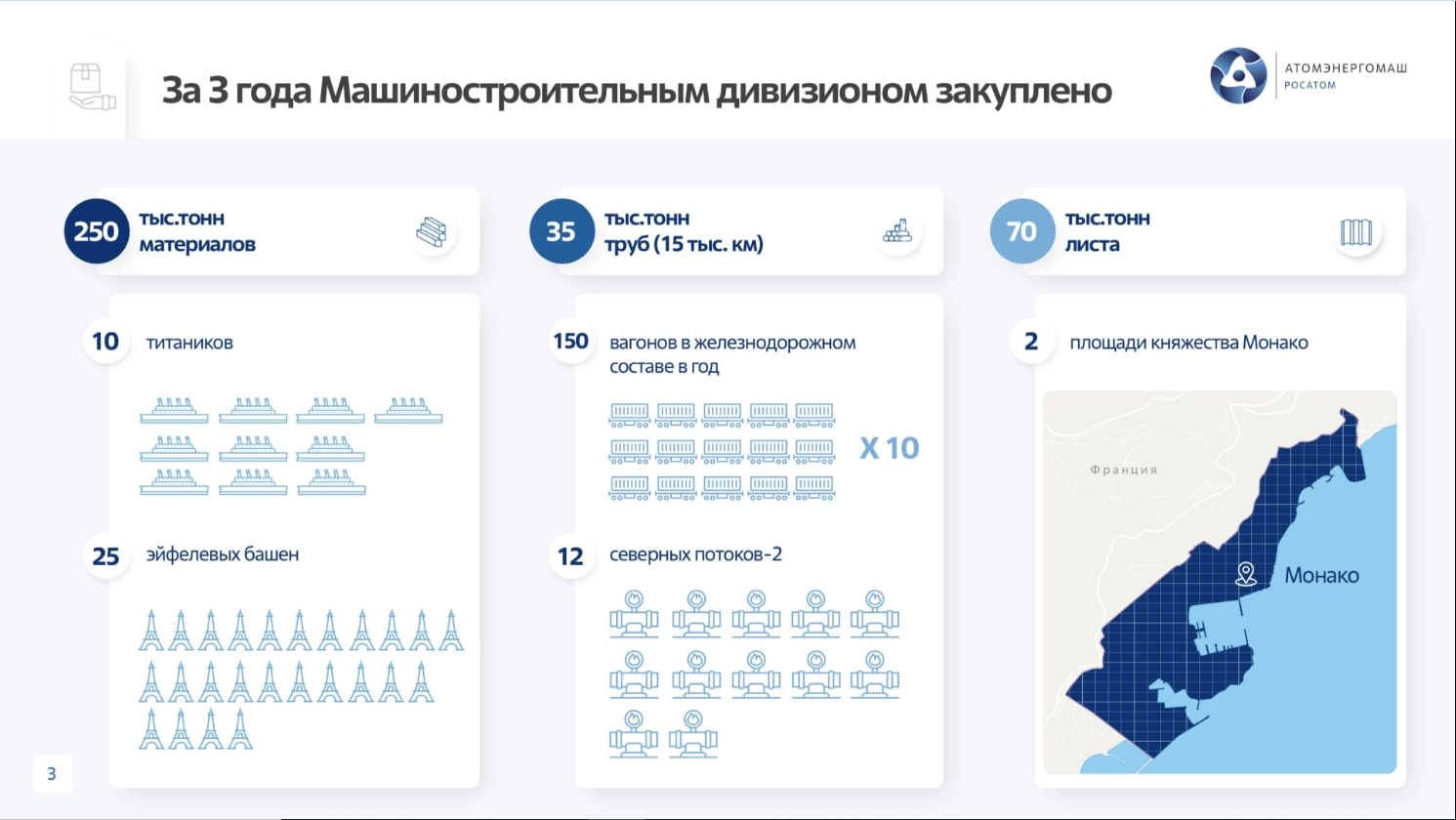
Graphs and diagrams. Menu “Insert” → “Chart” and select the appropriate one, just don’t forget to enter your data. Don't get carried away with complex 3D models to show the numbers, a simple graph or bar chart is enough. If you want a more interesting option, it’s better to order individual infographics in a corporate style from the designer.
-
Videos and gifs. We use it, but without bending it. Path: “Insert” → “Multimedia” → “Video/Sound”, for gifs through “Insert” → “Drawings” (it is better to first save the .gif file on your computer). Please note that the gif will only move in display mode. If you want to demonstrate how a service or product works, use the Screen Recording function (in Multimedia) - the video will immediately appear on the next screen. The sound is not written; it is added separately.
-
Interactive. If you allow your audience to not only listen, but also participate in the process, your presentation will be more memorable. In Power Point you can insert a QR code, for example, into a landing page or a survey, or a link to a calculator. But only if you think the audience will interact with them, otherwise it's pointless.
Animation and transitions
Special effects remained in the 2000s; now it’s enough to set up smooth transitions between slides. Select the standard “Shift”, “Appear” and check the “Apply to all” checkbox so you don’t have to return to this again.
Animation is responsible for the life inside one slide. These are the effects of the appearance, disappearance and scaling of individual objects, for example, a photo of the team appears on the left, the columns of the diagram grow one by one. You talk about the indicators and demonstrate them one by one with a mouse click. To do this you need:
-
Insert diagram.
-
Select it entirely and click “Animation” → “Add Animation”.
-
Select one of the proposed effects, for example, “Emergence”.
-
Set trigger: “On click”.
-
Click “Animation Area”, then in the menu on the right, click on the down arrow next to “Trigger: Diagram”.
-
Open the “Effects Options” and on the “Chart Animation” tab, choose how to group: by series, by category, by elements next to each other, etc.
When performing live, it is better to set the appearance of objects at the click of a mouse. Then you don’t get ahead of yourself and gradually display information on the screen. This is especially important if we are talking about a step-by-step process, such as a customer journey or decision logic.
Testing and rehearsal
Even Steve Jobs never neglected rehearsals and a general run-through of the presentation - and he did everything right. Don't send the file right after you've set up your transitions and saved. According to the law of meanness, there will always be a slide with a missing logo or a crookedly inserted GIF.
Here is the verification checklist:
-
Review a PowerPoint presentation manually: how transitions and animations work, how slides switch.
-
Make sure the text is readable. Open on a laptop, on a projector, in Google Meet, on a smartphone.
-
Check it out in Slideshow mode. This way the file will be played on the webinar, on the website or on the client’s computer.
-
Remove the excess. Anything that distracts from the main idea is duplicated, mercilessly cut out.
-
Get help from a friend. Ask a colleague to “run” it in your place; a fresh eye will notice what you missed, especially if the deadline is at 10:00 and you finished at 2 in the morning.
Rehearsing in front of the audience will show where you need to pause, where to give additional explanations or invite you to ask questions in the chat, what point you need to focus on, and where the audience will start to yawn. So we advise you not to skip this stage, it will help combine the presentation and live performance into a powerful approach, after which they say: “Sold!”
Saving and exporting a presentation
The stupidest mistake you can make after 50 slides is not saving. The built-in autosave also sometimes does not work. So pressing Ctrl+S, as well as saying “Thank you” to the waiter, is still good form.
By default, PowerPoint prompts you to save the file in .pptx format. This is convenient if you plan to modify, share with colleagues or demonstrate in the same program.
If you just want to send a file and be sure that nothing will be lost, save a copy as a .pdf. The recipient will see the document exactly as you intended, even if he has PP 2007 and Linux (but without animation and gifs).
It’s worth making backup copies, they will save you from “everything is lost, boss!”, when you work on a presentation for a week, added graphics, video, and then suddenly: “the file is damaged” or “cannot be opened.” Store copies in the cloud (Google Drive, Yandex Drive, Dropbox) and on a flash drive.
If the show is only online, consider exporting: in what format do you plan to present the prize to viewers? You can export to video via “File” → “Export” → “Create Video”, in this case all transitions and animations will be saved, and the video itself will be in high quality. Or send it in demonstration format (PowerPoint Show, .ppsx), in which case the file will immediately open in “Slideshow” mode in full screen. If sent as PDF, all interactive elements (links, navigation buttons, etc.) will remain functional, but animations and videos will be converted to static images. This option is suitable when the presentation is used simply as a summary of the speech.
Do a run-through on a projector or widescreen screen in advance. In the settings, you can select the desired aspect ratio: “Design” tab → “Slide Size”. Set to 16:9 for modern screens and 4:3 for older projectors.
Additional tips and lifehacks
Connect neural networks, with them you can assemble a draft in a couple of minutes. AI will help:
-
generate a structure - try ChatGPT or Gamma.app;
-
make the text shorter and more convincing - any neural networks with an editor function will do;
-
generate illustrations - Midjourney, DALL·E, Kandinsky, and even Microsoft Bing;
-
come up with headings and subheadings, offer several ideas based on the provided text;
-
voice text and turn slides into videos - for example, Clipchamp or Pictory are suitable.
In addition, some neural networks, for example, ChatGPT, can generate VBA code, which will then automatically create a PowerPoint presentation. That is, first you describe the GPT task using successive prompts, and then ask to generate VBA code. In PowerPoint, you need to open the VBA code editor (Alt+F11), create a new module (Insert → Module) and paste the code copied from the chat. Then click Run and take the result.
It is important to understand that AI can only be an assistant. To create really good work with its help, you need to understand the principles of prompt engineering, complete requests on the fly and be sure to check the facts, otherwise you can be congratulated on growing your turnover to 200 billion dollars, no matter that you are a diner near the subway. And access to most neural networks from Russia is limited.
If you don’t have the time or desire to choose fonts, think about the structure, draw graphs and understand neural networks, then the best life hack is to send the presentation to production. Let's not point fingers, but here we go our portfolio.