
What Is a Multimedia Presentation? A Complete Expert Guide
Learn what a multimedia presentation is, which elements and formats it uses, and how to create an engaging multimedia deck in PowerPoint.

A multimedia presentation is a slide deck in which text, video, animation, sound, and interactive elements work together across several channels of perception. This makes the content easier to understand and remember than a conventional text-heavy deck.
A slide with a bulleted list on a white background is an outline, not a presentation. A good multimedia presentation guides the audience: animation reveals a process, infographics explain the numbers, and video captures attention at the right moment. That is why the format is used everywhere, from school lessons to investor pitches.
Key takeaways:
- A multimedia presentation combines text, video, audio, animation and interactive elements into one product.
- People can remember up to 65% of information presented with relevant visual and audio support, compared with about 10% from audio or plain text alone.
- Interactivity transforms the viewer from a passive observer into a participant.
- Used in business, education, marketing and corporate communications.
- The main tool is Microsoft PowerPoint; for interactive scenarios - Articulate Storyline and Genially.
What is a multimedia presentation: key features and capabilities
A multimedia presentation is a visual product in which several content formats work toward one goal: conveying information clearly and memorably. Text establishes meaning, images provide context, video demonstrates what would take too long to explain, animation directs attention, and interactive elements turn viewing into participation.
The term “multimedia” combines the ideas of multiple and media: several channels of perception working at once. When sight, hearing, and interaction reinforce one another, information is absorbed differently than through reading alone. PowerPoint, included with Microsoft 365, became an industry standard because it supports all of these formats in a single file without extra plugins.
What does multimedia presentation mean in practice? One slide can simultaneously show an animated production diagram, play a short voiceover and contain a clickable button to go to the desired section. Three formats, one goal, one slide - the audience understands and remembers.
Key elements of a multimedia presentation
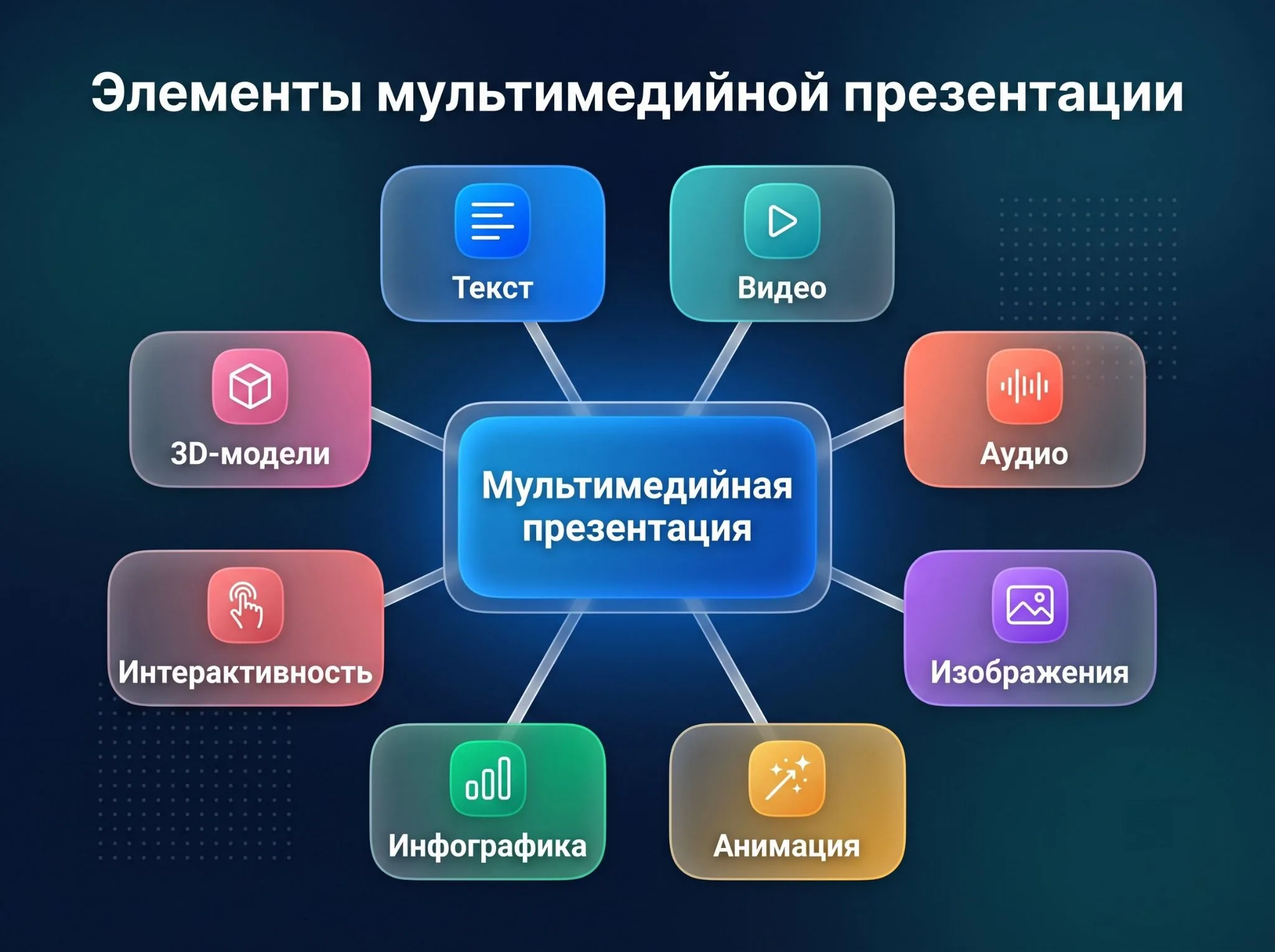
The elements of a multimedia presentation are the building blocks of the finished product. Each one supports a different aspect of perception.
- Video content — demonstrates what could take half an hour to explain in words: a production process, a product in use, or a customer testimonial. A 30–60-second video can replace several text-heavy slides.
- Audio content — background music, announcer’s voice or sound accents. Particularly important in standalone presentations that work without a live presenter - at a trade show or on the sales floor.
- Animation - controls attention. Elements appear sequentially, and the audience sees exactly what the speaker is saying right now, rather than reading the next point in advance.
- Infographics — turn data into clear visuals. A sales-growth chart can be understood in seconds; a table with the same figures takes much longer to process.
- Interactive elements — buttons, hyperlinks, quizzes, and pop-up panels. The viewer clicks, chooses, and follows the scenario instead of passively watching.
How does a multimedia presentation differ from a regular one?
The difference is felt physically: on regular slides, the audience reads the text themselves and, as a rule, ahead of the speaker. After that, listening is no longer interesting. A multimedia presentation keeps the eye where it needs to be because the next element appears only when its time has come.
Audience engagement is a key indicator. When people watch, listen, and interact, they stop being passive spectators and become participants. This improves recall and makes the information feel more relevant.
| Parameter | Regular presentation | Multimedia presentation |
|---|---|---|
| Content Formats | Text + static pictures | Text, video, audio, animation, interactive |
| Engagement | Passive perception | Active participation |
| Interactivity | None | Buttons, quizzes, scenario-based navigation |
| Memorability | ~10% after 3 days | Up to 65% in 3 days |
| Technical requirements | Minimum | Screen with video and audio support |
Multimedia presentation file formats and types
The choice of presentation format affects how it works when shown and transmitted:
- PPTX — the standard format for live presentations. It preserves animations, video, and interactivity and remains editable.
- PDF — a universal format for sharing. It opens on almost any device, but animations and video will not play.
- MP4 — export slides to video sequence. Suitable for social networks and email when you need a multimedia effect without the recipient having PowerPoint.
- HTML5 — opens in the browser without downloading. Used for interactive presentations and online publications.
Benefits of Using Multimedia Presentations
Why are business and education moving to multimedia presentations?
- Better recall. The picture-superiority effect means that relevant visuals are often remembered better than words alone. When visual and audio cues reinforce each other, information is processed more deeply and retained longer.
- Increased audience engagement. An animated chart that appears as the story unfolds keeps attention on the point being discussed. A video testimonial is usually more persuasive than a written quotation.
- More persuasive arguments. Infographics place figures in a clear visual context. Investors and clients can assess the data and make decisions faster.
- Flexibility of formats. The same multimedia presentation is shown in a room, mailed as a video, published as a web page, or placed on a trade show booth. Different file formats make this possible without complete rework.
- A stronger company image. A polished multimedia presentation signals preparation and professionalism. The quality of the format affects how the content is perceived.
Types of Multimedia Presentations
Multimedia presentations vary in purpose, audience and presentation format. The same technology works completely differently in a meeting room, at a university lecture and on a trade show stand, and there is no point in mixing approaches.
Business-oriented multimedia presentations
In business, every corporate presentation is created for a specific purpose. Each type follows its own rules.
- Corporate profile — the company’s business card for partners and clients. It focuses on the story, team, and real case studies. Video from a production site or office often communicates more than a long description.
- Product catalog — an interactive or slide-based catalog with clickable categories, pop-up specifications, and product videos. It is especially useful in wholesale sales, where buyers compare a large range directly on screen.
- Investment pitch - the most demanding format. 10–15 slides, each worth its weight in gold. Infographics with financial indicators, animated market data, video demonstration of the product. There is no room for unnecessary slides or bad design.
Educational multimedia presentations
In education, multimedia technologies are restructuring the very mechanics of learning. A student who watches an animated diagram of an engine's operation understands it faster than one who reads a textbook paragraph - and this is not a matter of laziness, but a matter of how perception works.
The formats vary: a university lecture with video inserts, corporate training with quizzes after each section, or a complete course on Moodle, an open-source learning management system. Branching scenarios add another level of interaction: learners answer a question and follow a route based on their response. An incorrect answer returns them to the relevant explanation. This can be more effective than a linear course because the experience adapts to each learner.
Interactive multimedia presentations
An interactive presentation uses non-linear navigation. The viewer controls the route by pressing buttons, choosing sections, or taking a quiz, so a live presenter may not be required.
Interactivity is implemented at different levels of complexity. Simple - hyperlinks between slides and navigation buttons. Medium - pop-up blocks and clickable elements with additional information. Advanced - branched scenarios, tests with automatic assessment, adaptive routes depending on the user's answers.
This format is especially suitable for exhibition stands, training programs, and self-running presentations that must work without staff nearby.
How to Make a Multimedia Presentation: Step-by-Step Guide
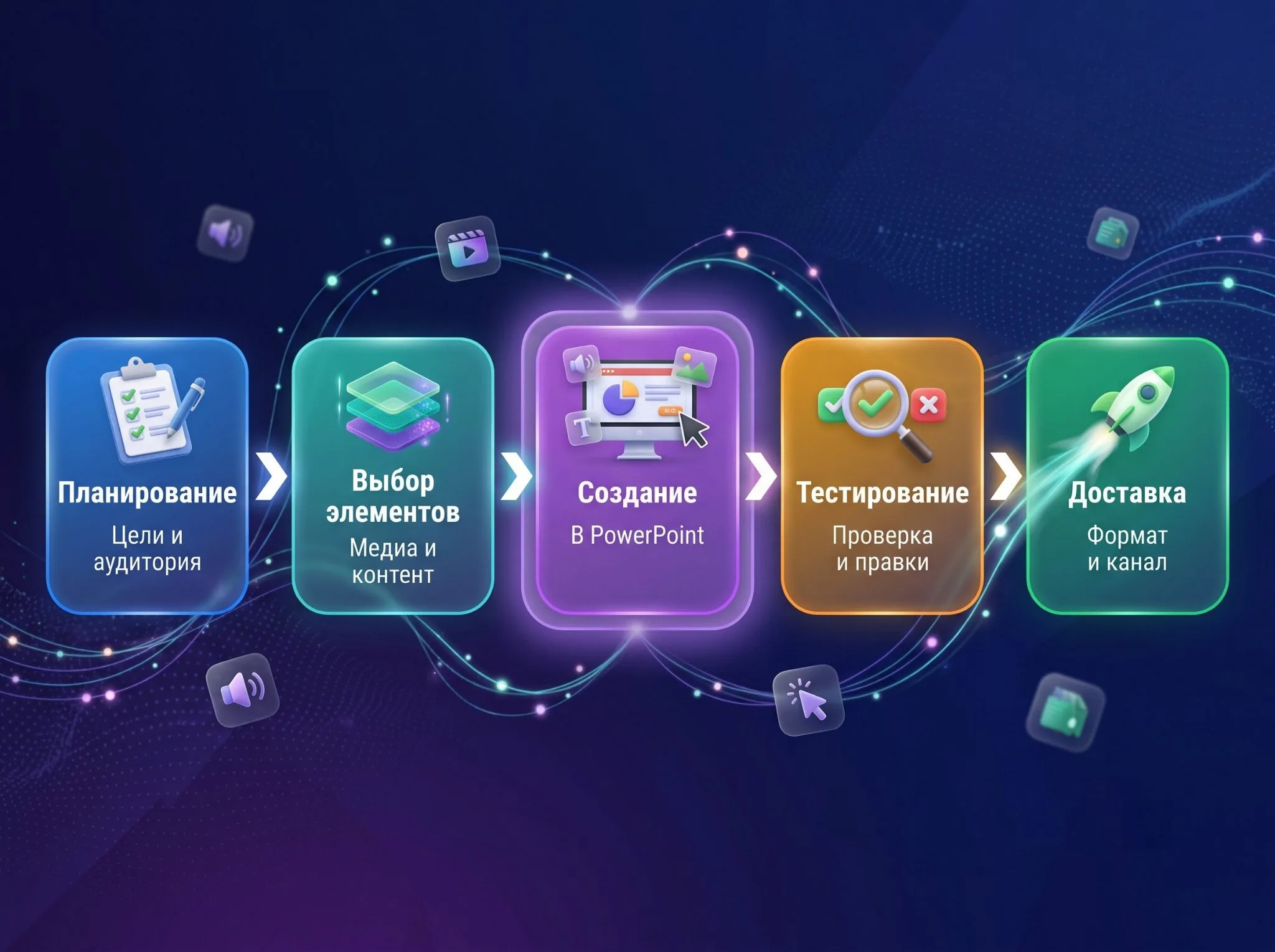
Creating a multimedia presentation is a full-fledged project with its own stages and control points. The first question to ask is: why is this presentation needed at all and what should the audience do after watching it. Here are five development steps that work regardless of the tool.
Step 1: Plan and develop the presentation structure
Before opening any program, you need to honestly answer three questions:
- Who is the audience? Investors with industry experience will interpret the data differently from students without a technical background.
- What should the audience do afterward: buy, approve a budget, or enroll in a course?
- How will the presentation be delivered: live, in an online conference, on an offline kiosk, or by email?
After that, sketch out the presentation structure on paper or in a text file. One slide, one idea. The final slide should always contain a specific call to action. Companies that skip this step and go straight to presentation design usually have to redo everything from scratch.
Step 2: Select and integrate multimedia elements
Add media to support the message, not merely for decoration. Use this simple guide:
| Goal | Recommended medium |
|---|---|
| Show process or product operation | Video insert 30–60 seconds |
| Explain numbers and data | Infographic, animated chart |
| Keep attention on the key idea | Animation of elements appearing |
| Create an atmosphere offline | Audio content - music or voiceover |
| Give the viewer control | Interactive buttons, tests |
Don't mix everything at once. Video plus animation plus sound on one slide is not multimedia, it’s chaos pretending to be multimedia.
Step 3: Create a multimedia presentation in PowerPoint
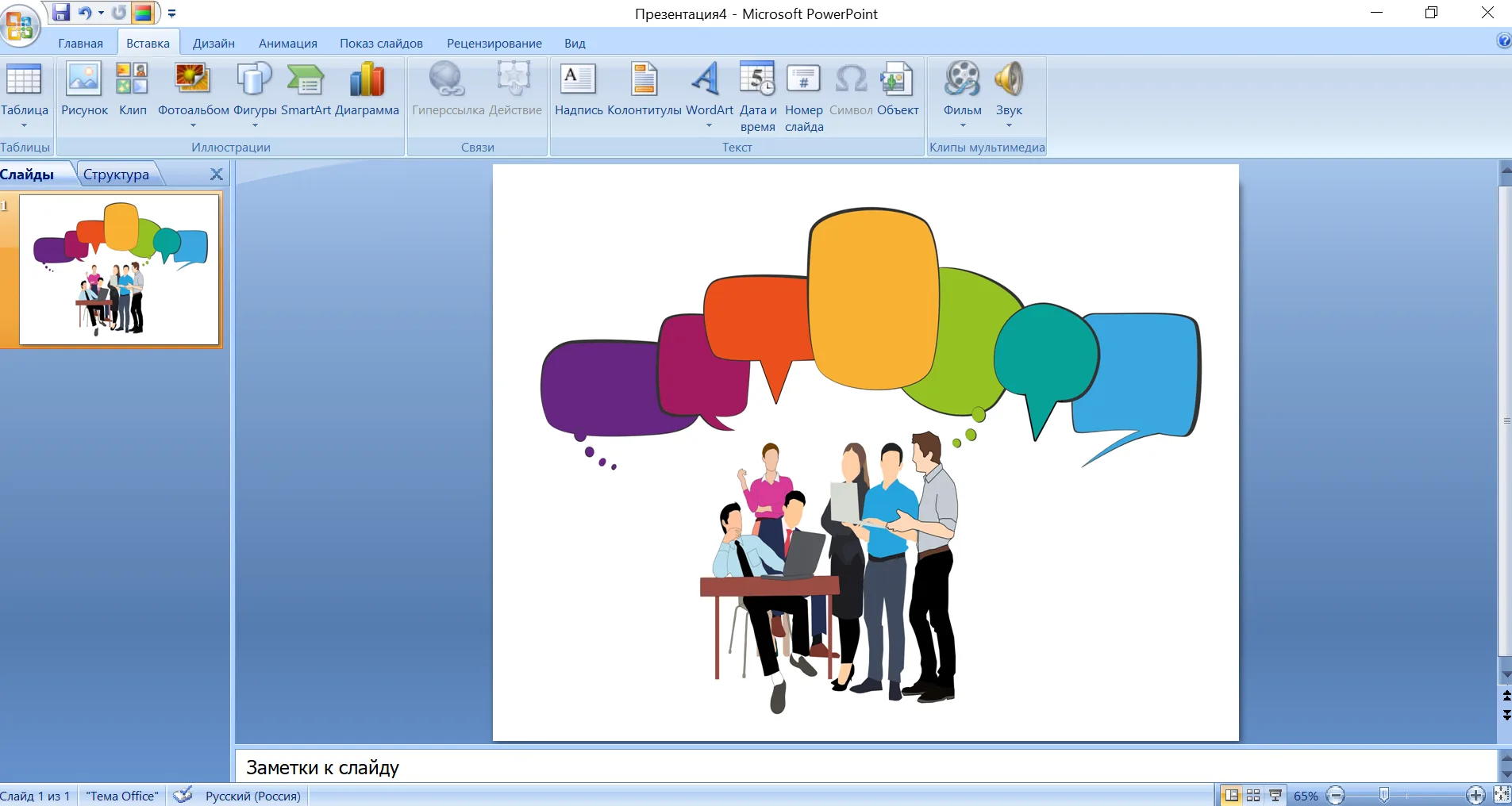
PowerPoint (a Microsoft program included in Microsoft 365) is suitable for most formats, from a corporate pitch to a training course. A few functions that not everyone knows:
- Insert → Video → This Device — embeds the video directly into the file. Once pasted, go to File → Info → Optimize Compatibility and make sure the video content is embedded and not just linked.
- Animations → Animation Pane — controls the exact order in which elements appear. You can also set triggers, such as showing an element only after a specific click.
- Insert → Action — adds a button with a transition to any slide or external link. The basis of simple interactivity without special platforms.
- Record → From Beginning — records narration directly into the file, producing a self-running presentation without separate audio editing.
- Slide Show → Set Up Slide Show → Loop continuously until Esc — useful for exhibition displays and kiosks.
Step 4: Presentation and Delivery Methods
One file behaves differently depending on where it is shown:
| Method | Pros | Cons |
|---|---|---|
| Live presentation in a venue | Full control over pace and audience response | Requires on-site equipment and rehearsal |
| Online conference (Zoom, Teams) | Wide coverage, automatic recording | Complex animations freeze when the Internet is unstable |
| Standalone display or kiosk | Works without a presenter 24/7 | Requires narration or subtitles |
| Email delivery | The recipient can view it at a convenient time | Not everyone can open PPTX; MP4 or PDF is safer |
Step 5. Testing and optimizing the presentation
Checking the presentation on your laptop an hour before the speech is not testing. A normal checklist looks like this:
- Playback of all video and audio files on the device from which it will be shown.
- Opening a file on someone else's computer - fonts should not be replaced with system fonts.
- Full slide show run in full screen mode with all animations.
- Resolution: standard for modern screens - 16:9, 1920 × 1080 pixels.
- A backup PDF on a flash drive in case the equipment fails immediately before the presentation.
Common mistakes when creating multimedia presentations
A bad multimedia presentation is not one with few media elements. Most often there is too much of everything, and everything is not where it should be.
- Overloaded slide. Three pictures, a diagram, two paragraphs of text and a logo on one slide - the audience does not understand where to look and does not remember anything. One slide - one thought.
- Animation for animation's sake. Letters flying in a spiral, the “Whirlwind” transition, a flashing title - all this distracts from the meaning. Animation is appropriate where it explains something: a sequence of steps, the structure of a process, a change in data.
- Video without verification. The built-in video content did not start, the sound disappeared, the file remained on the home laptop - a classic of the genre. Always embed media via "Optimize Compatibility" and test on a real device beforehand.
- Unreadable font. 10-12 pt text on the slide is not visible beyond the third row. Minimum: 24 pt for body text, 32–40 pt for headings. If the text is not readable from the fifth row, it should not be on the slide at all.
- Final slide: “Thank you for your attention.” The audience smiles sweetly and leaves, still not understanding what to do next. The last slide is always a specific next action: write, buy, arrange a meeting.
Programs and tools for creating multimedia presentations
Presentation tools fall into three groups: desktop applications, browser-based services, and specialized platforms. The right choice depends on the task, budget, and required learning curve.
PowerPoint is the industry standard for business presentations: rich in tools, compatible with any device, and supports all media formats. Google Slides wins where real-time collaboration is important—multiple people editing the same file without sending versions back and forth. Canva is the best choice when you need beautiful templates without design education.
| Program | Type | Multimedia | Cost | Level |
|---|---|---|---|---|
| Microsoft PowerPoint | Desktop | Full | From $6.20/month (Microsoft 365) | Medium |
| Apple Keynote | Desktop/iOS | Full | Free for Apple | Medium |
| Google Slides | Browser | Basic | Free | Low |
| Canva | Browser | Basic + video | Free / from $15/month | Low |
| Genially | Browser | Full + interactive | Free / from €7.49/month | Medium |
| Articulate Storyline 360 | Desktop | Full + e-learning | From $1,299/year | High |
If you would rather leave the process to specialists, the Veonix team creates turnkey presentations, including structure, design, animation, and final quality assurance.
Specialized software for multimedia presentations
For certain tasks, standard tools are not enough - then animation and editing tools are used:
- Video editors — DaVinci Resolve (free professional video editor) or Adobe Premiere Pro for preparing video inserts before importing into slides.
- Audio editors — Audacity (free open source editor) for recording and editing voiceovers.
- Animation Tools — Adobe After Effects for complex animated elements; Lottie for easy web animation without heavy files.
- Interactive platforms - Articulate Storyline 360 and iSpring Suite for training courses with branching scenarios and progress tracking.
Conclusion
Multimedia presentation, when used correctly, changes the way the audience perceives and remembers information. But only under one condition: each element - video, animation, sound - serves a meaning. Media for media's sake doesn't work in any format.
Three guidelines that will save you from common mistakes:
- Start with structure and purpose—choose tools and design last.
- One slide - one thought; one media element - one task.
- Test your presentation on a real device before each show—not five minutes before, but the day before.
Future trends include AI slide generation (already implemented in Microsoft Copilot for PowerPoint), 3D elements in corporate presentations, adaptive interactive scenarios. Technologies change, but the principle remains: the audience remembers what it understands.
Frequently Asked Questions
Is it possible to make a multimedia presentation on a smartphone?
Canva and Google Slides have full mobile apps, and PowerPoint for iOS and Android supports inserting videos and animations. For complex interactive scenarios - only desktop: the mobile interface limits the accuracy of settings.
What is the maximum size of a video file allowed inside a presentation?
The recommended maximum is 100–200 MB per video, no more than 500 MB for the entire file. Heavy files slow down slide switching. Optimal parameters: 1080p resolution, MP4 format, H.264 codec.
Do you need special education to make multimedia presentations?
Not for basic tasks. PowerPoint and Canva can be learned without formal training. Building complete interactive courses in Articulate Storyline takes more time because it is a professional platform. Good templates can also compensate for limited design experience.
How to protect a presentation from copying and editing?
There is a common misconception that PPSX protects a file. It does not: the format only opens the deck in slide-show mode by default, and the file can still be opened for editing. To restrict editing, use File → Info → Protect Presentation → Encrypt with Password. If you also need to make copying harder, export the slides as an MP4 video or publish them through a platform such as Genially with password-protected access.
When is a multimedia presentation not needed?
It may be unnecessary for a conversational format, such as a one-to-one negotiation or a five-minute meeting, where slides would distract from the dialogue. It is also a poor fit when the content changes every week and maintaining the deck would cost more time than presenting without slides.