How to Create a Professional Brochure in Microsoft Word: Complete Guide
Learn how to make a brochure in Microsoft Word from scratch or with a template, including page setup, margins, formatting, and duplex printing.

To make a brochure in Word, open Layout → Page Setup and select “Book fold” from the “Multiple pages” list. Microsoft Word will automatically switch the page orientation and adjust the margins. Alternatively, start with a ready-made brochure template via File → New.
A brochure in Word is a practical option if you do not have Adobe InDesign or the budget for a designer. Microsoft Office is widely available, and its built-in tools are sufficient for creating a polished handout, catalog, or corporate booklet. Below are two ways to build a brochure—from scratch or from a template—followed by the correct print settings.
Brochure and booklet - what's the difference?
These two terms are often confused, although we are talking about different formats. A brochure is a multi-page document stapled in the center. The number of pages is always a multiple of four: 8, 12, 16. A booklet is one sheet of paper with folds, a maximum of three or four sections.
| Criterion | Brochure | Booklet |
|---|---|---|
| Structure | Several sheets stitched in the center | One sheet with folds |
| Pages | Multiples of 4 (8, 12, 16…) | 2–4 sections |
| Usage | Catalogs, manuals, reports | Flyers, menus, announcements |
| Create in Word | Brochure mode in page settings | Table or columns |
If you need a multi-page brochure format, read on. If one sheet with two or three folds is enough, it’s already a booklet, and the settings will be different.
How to Create a Brochure in Word Manually
The manual method gives you complete control over the layout: you choose the fonts, margins, and placement of every content block. The process has two stages: configure the page first, then add the content.
Configuring Page Setup for a Brochure
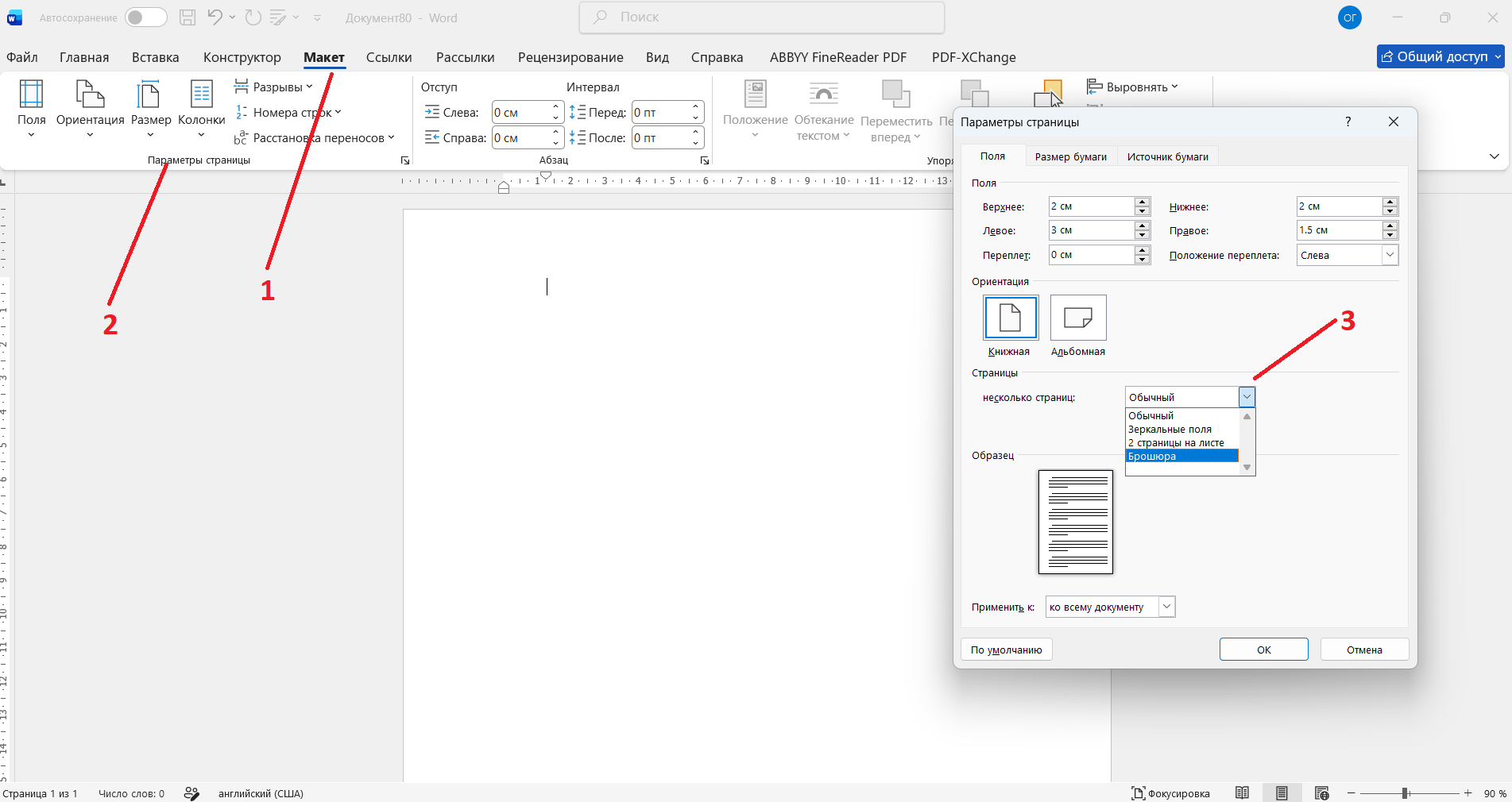
This is the first and most important step. Changing the page setup after adding the content can disrupt the entire layout.
- Open the Layout tab in the top bar.
- Open the Page Setup dialog using the small arrow in the lower-right corner of the Page Setup group.
- On the Margins tab, find the “Multiple pages” list and select “Book fold”.
Word will automatically switch the orientation to landscape and replace the “Left” and “Right” margin fields with “Inside” and “Outside”.
- Set the margin values: top and bottom - 1.5 cm, inner - 2 cm, outer - 1.5 cm, binding - 0.5 cm.
- Specify the number of pages - a multiple of 4.
After folding in half, an A4 sheet will give a format of ~148 × 210 mm (A5) - a standard brochure layout for most purposes.
Formatting text and adding content
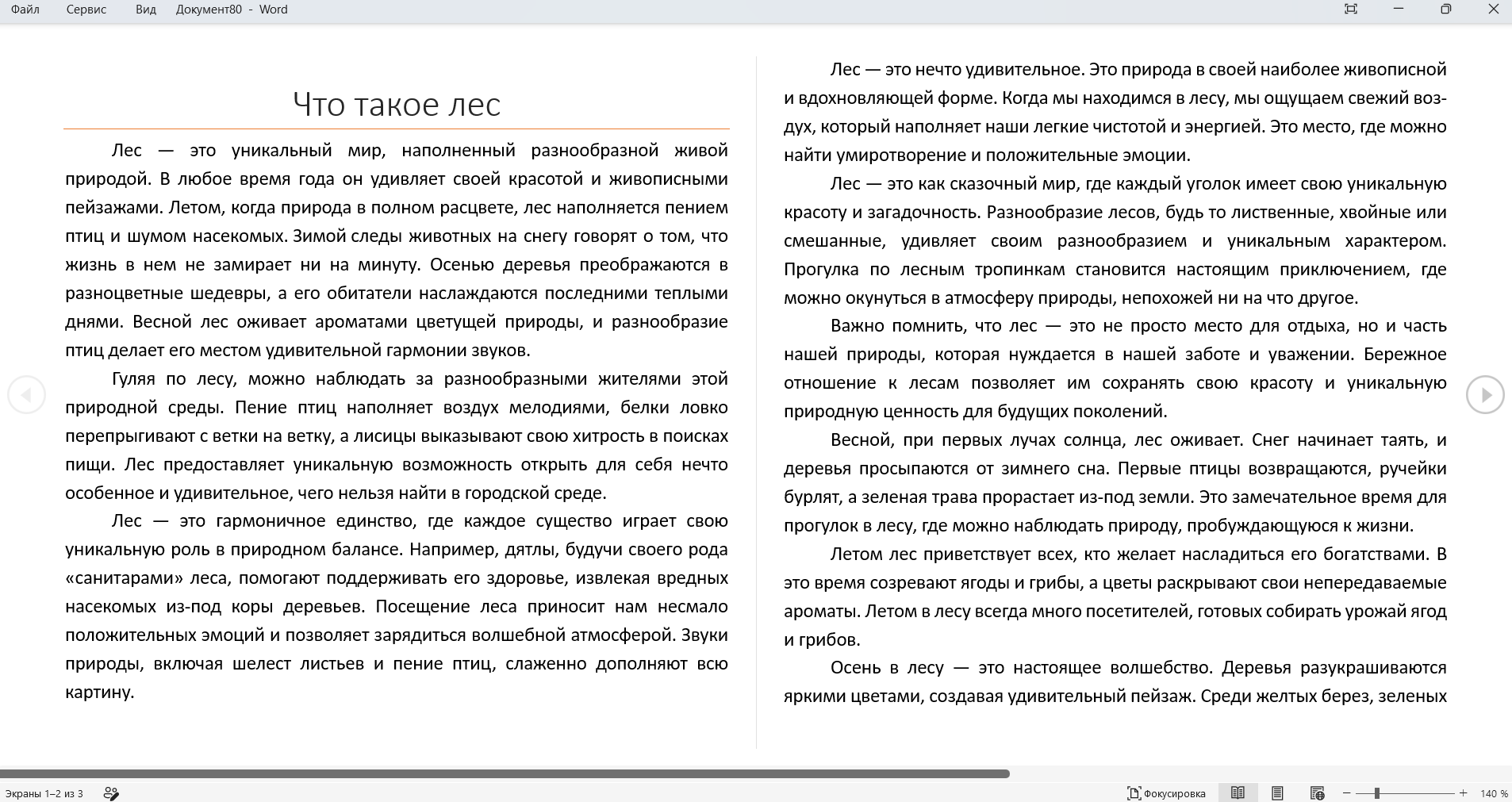
Once the page is set up, designing a brochure takes less time if you immediately use Word styles - these are built-in formatting sets (Home tab → Styles). If you change one style, all headings change at once, without manually editing each one.
A few practical guidelines:
- The main text is 10–11 pt, section headings are 14–16 pt.
- Insert images via Insert → Pictures, then choose Wrap Text → Tight or Square so the text does not overlap the image.
- Make the first page the cover: a large headline, a logo, a minimum of text.
- Add headers and footers with page numbers via “Insert” → “Header and Footer”.
Create a brochure using Word templates
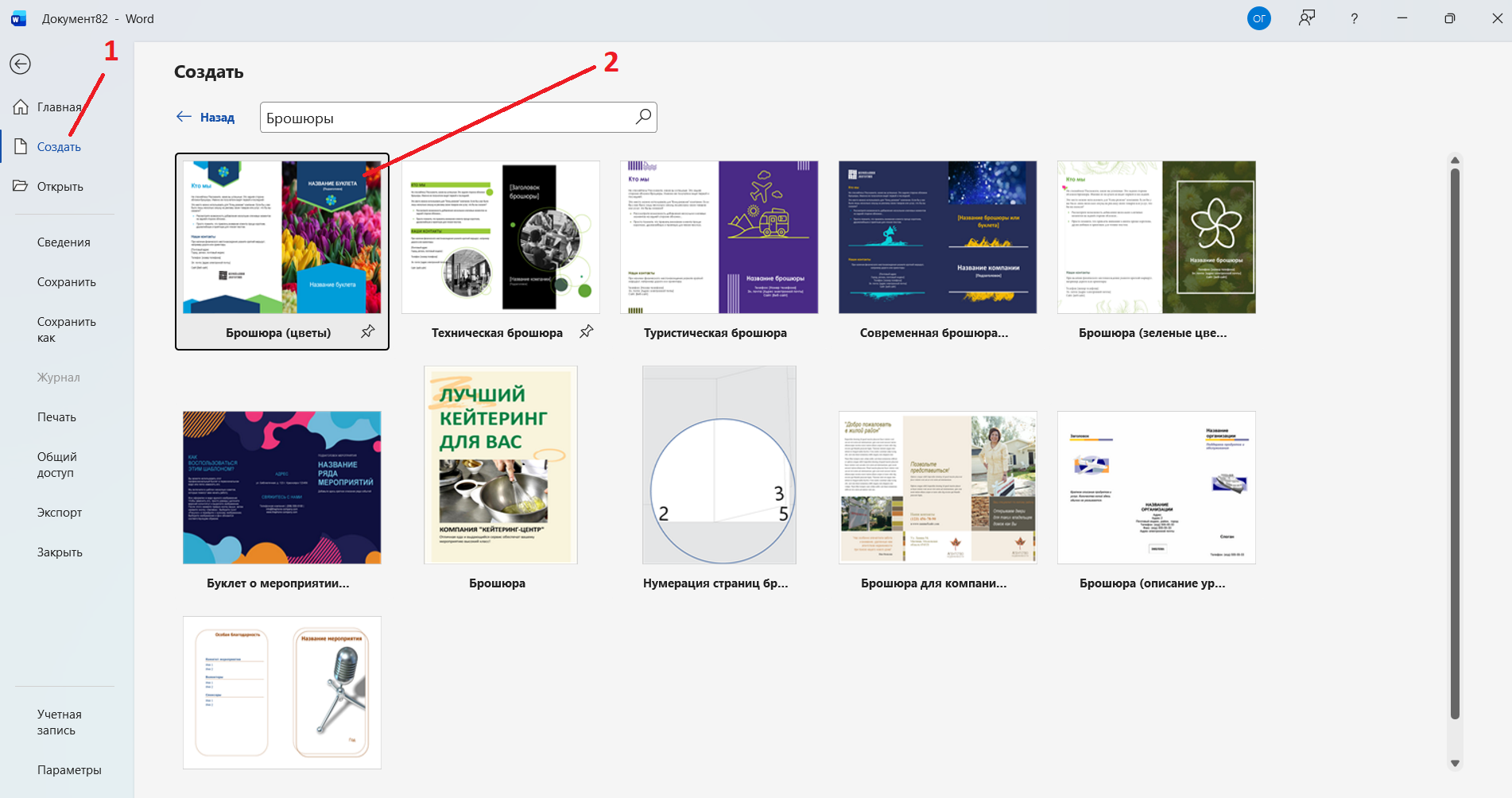
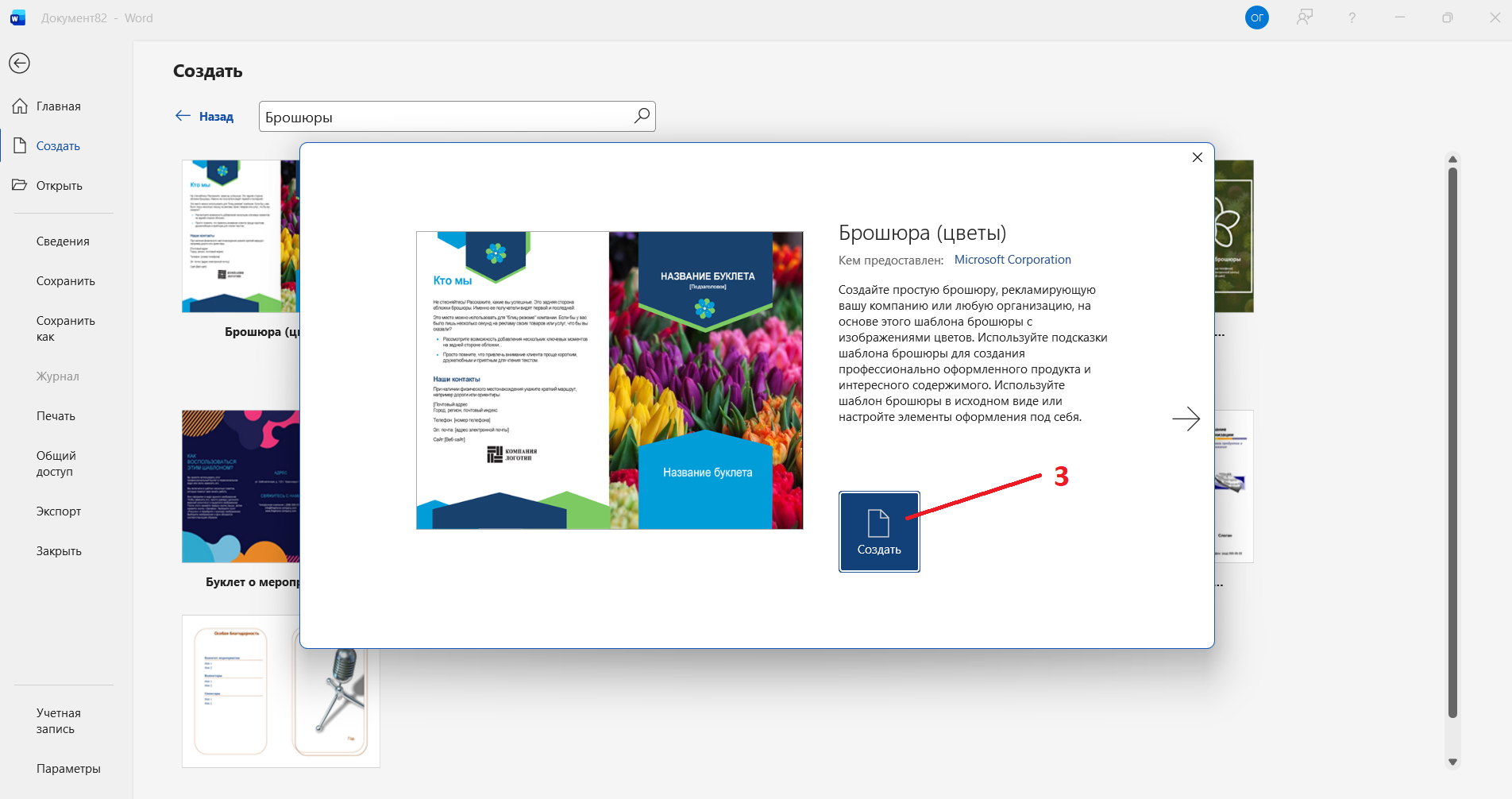
If you’re short on time and don’t want to tinker with things from scratch, the built-in Microsoft Word templates will save you a couple of hours of work.
- Open File → New.
- Type "Brochure" in the search bar.
- Select the appropriate option from the gallery - Word will show a preview before opening.
- Click New and replace the placeholder text with your content.
- Replace the logo and update the colors via Design → Colors.
A template is only a framework. Replace its colors, fonts, and images with your brand assets, or the brochure will look like thousands of other documents made from the same Word template.
If you need a truly unique design of printed materials, the Veonix team develops turnkey brochures and booklets: from concept to print-ready layout.
Brochure printing - no surprises
Print settings are as important as layout: an incorrectly printed brochure is a stack of upside-down sheets.
- Open File → Print.
- Select “Print on Both Sides” and choose “Flip pages on short edge”. Otherwise, the text on the back of each sheet will be upside down.
If the printer only prints on one side, select “Manually Print on Both Sides”. Do not split the job into odd and even pages: Word will arrange the pages correctly and tell you when to place the paper stack back into the tray.
- Before printing, print one test copy and fold it in half to check the page order and margins.
For paper: a density of 120–170 g/m² is suitable for brochures. 80 g/m² office paper is translucent when printed on both sides - the text on the reverse side will be visible.
Common mistakes when creating a brochure in Word
- Odd number of pages — Word will not be able to correctly arrange them into sheets. Add one or two blank pages up to multiples of four.
- Text extends beyond the margins after enabling Book fold — reduce the font size by 1–2 pt or adjust the margins in Page Setup.
- Pages print in the wrong order during manual duplex printing — the short-edge flip setting is incorrect. Always make a test copy before printing the full run.
- Content was added before Book fold was enabled — the formatting may shift. Apply Book fold in Page Setup first, then refine the layout.
Key Takeaways
- The Booklet mode in Microsoft Word Page Setup automatically adjusts the orientation, margins, and layout of sheets.
- The number of pages is strictly a multiple of 4, otherwise the layout will break.
- For a quick start, use brochure templates via File → New, but always replace the default colors and fonts.
- Before printing, print a test copy on 120–170 g/m² paper.
Word handles brochures quite well, especially for internal materials and short print runs. For client-facing materials, where every detail matters, it makes sense to entrust the layout to Veonix professionals.