
How to make a booklet in Word: a detailed guide
How to make a booklet in Word - step-by-step instructions for creating a booklet in Microsoft Word from scratch and using a template. Page setup, columns, printing, design tips.


Every office has its own hero. Someone closes the quarterly report on the last night, someone fixes the coffee machine with a paper clip. And someone on Friday evening hears from the authorities: “We need booklets for the exhibition by Monday. You know how to use Word, right?”
And this person is now reading our article. Relax, it’s possible to make a booklet in Microsoft Word, quickly and without Adobe for 40 thousand a year. The program from the Microsoft Office package copes with this task quite well. You just need to know where to click. We'll show you.
What is a booklet and why create one in Word
In short: a booklet is an A4 sheet folded in two or three times. Do not confuse it with a brochure - it consists of several pages stapled together and is more difficult to layout. Classic advertising booklet - tri-fold, 6 working pages, two sides. I folded it, distributed it at the exhibition, everyone was happy.
Why Microsoft Word and not CorelDRAW or InDesign? Enjoy the main benefits:
-
It’s already on your computer—no need to buy or download anything.
-
The interface is familiar - if you have ever written an essay, you can handle it.
-
Built-in templates – you can start in 5 minutes.
-
It's easy to send the file to a colleague - it will open without fiddling with converters.
Word, of course, is not suitable for complex marketing materials with flyouts and pantones. But for a handout for an exhibition, an information sheet for a clinic or a menu for the coffee shop “Vadik’s” - more than enough.
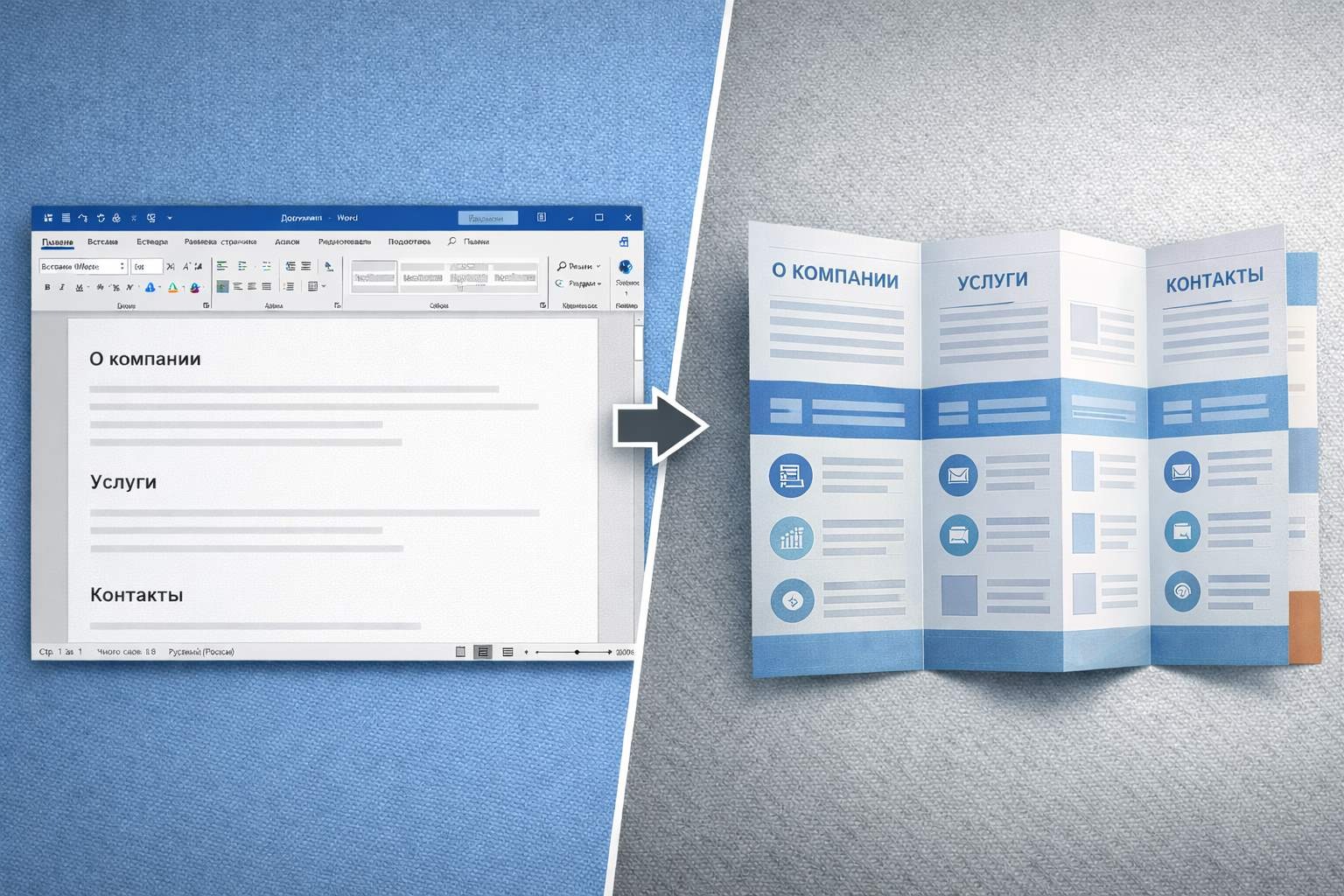
Preparing to create a booklet
Just a second. Before we dive into Microsoft Word and chaotically drag around blocks of text, let's prepare. Good brochure design starts not in the program, but in your head.
-
Why do you need a booklet? Sell a service, invite to an event, tell about the company? The volume of text, number of pictures, and tone depend on the answer.
-
Who will read? Investors want numbers, festival visitors want bright photos and a minimum of letters, clinic patients want clear instructions.
-
Collect all content in advance: texts, logo, photographs, contacts. If you start looking for a “suitable picture” halfway, you will lose an hour and nerve cells.
-
Decide on colors and fonts. Two fonts, three colors - the ceiling. If you have brand book, take it from there and don’t improvise.

Step-by-step process for creating a booklet in Word
We've sorted out the preparations. Next, use your hands: open Microsoft Word and assemble the booklet step by step. All you need is page parameters and 20 minutes of your time.
How to make a booklet in Microsoft Word with two sides in three folds
A three-fold booklet is the same trifold that you have held in your hands a hundred times. Sheet A4, 6 panels, two sides. Let's sort it out.
-
Step 1. Orientation and margins. “Layout” tab (in older versions – “Page Layout”). Click “Orientation” → “Landscape”. Then “Margins” → “Custom Margins” → set 1 cm on all sides. Narrow page parameters = more space for content. Logical, right?
-
Step 2. Three columns. In the same place, “Layout” → “Columns” → “Three”. The sheet will be divided into three equal parts. If you want to play with the width, select “Other Columns” and adjust it manually. Set the gap between the columns to 2.4 cm; if the margins are 1.2 cm, then after folding the margins will be the same on all sides.
-
Step 3. Separators. In the “Other Columns” window, check the “Separator” checkbox. Thin lines will appear between the columns - it is convenient to bend the finished sheet along them. They are only visible when there is text in the columns.
-
Step 4. Fill out the front side. Please note: the right column of the first page is the cover. This is what people will see first. Logo, title, a couple of catchy lines - here. The middle and left columns are the internal panels, the main filling.
-
Step 5. Reverse side. Ctrl+Enter – add a second page. It will inherit the same three columns. We post the remaining content and contacts.
-
Step 6. Bringing beauty. Pictures – via “Insert” → “Drawings”. Wrapping text – right click → “Before text” or “Behind text”. Colored solids – “Insert” → “Shapes” → rectangle → fill with the desired color → send to the background. And stop here in time. Two or three accents, readable font from 10 pt. Don't turn your booklet into a Christmas card from grandma.
Booklet printing and assembly

This is where the fun begins. The process of printing a booklet in Microsoft Word is a task bordering on shamanism. Especially if your printer doesn't automatically support duplex printing.
-
Printer with two-sided printing: in the settings, set “Print on both sides” → “Flip relative to short edge”. Just a short one - for landscape orientation this is critical, otherwise the reverse side will be upside down.
-
Printer without duplex: print the first page, insert the sheet back, print the second. Make a test copy before mass printing. Seriously, don't skip this step.
-
Paper: for handouts, take 130–170 g/m². The usual 80 g/m² looks sad after folding - it wrinkles, is translucent and does not inspire confidence at all.
Now let's add it up. First fold - the right panel is folded inward. Second, the left panel is placed on top. Ready.
Using templates for a booklet in Word
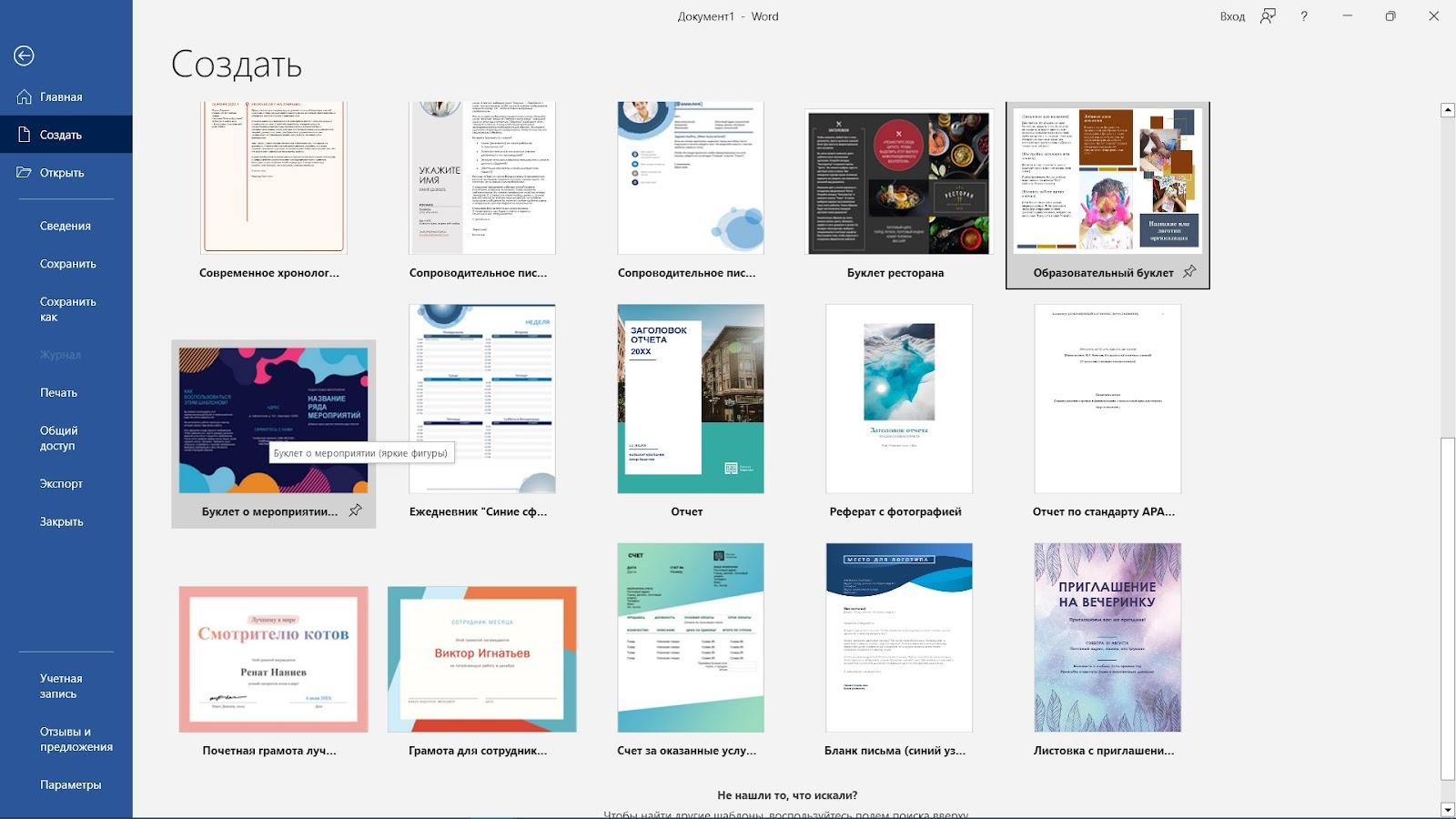
Too lazy to assemble manually? We understand. For such a case, Microsoft Word has ready-made booklet templates. Path: “File” → “Create” → enter “booklet” or “brochure” in the search bar. Word will show dozens of ready-made options. All that remains is to replace the text and pictures with your own.
Where else to look for a template for a booklet in Word:
-
Templates.office.com – official library from Microsoft, free.
-
Template.net, Canva – free and paid options, many compatible with Word.
-
Envato Elements - premium templates with thoughtful layout if your handout needs to look more expensive than it costs.
Life hack: before editing the template, save a copy of it. If something goes wrong, roll back in a second.
To make a booklet in the Word for work tasks is real and does not hurt. But if you need printing that you want to put in the reception and be proud of, Word may not be enough.
For those who need it. design of booklets, presentations and other printing At a level that neither investors nor mom are ashamed of, there is Veonix. Fill in. brief And you get a result, after which you no longer need Word.
FAQ – Frequently Asked Questions about Creating Booklets in Word
Can I make a booklet in Word without a template?
Yeah. In Microsoft Word, the booklet can be assembled from scratch: configure page parameters, select landscape orientation, set columns and place content manually. The template is not mandatory, but it helps to get the finished structure faster.
When is the best time to use a booklet template?
The template is suitable if you need a standard booklet without complex design. It saves time, but before printing, you still need to check the fields, the order of the panels, text transfers and the location of the images.
How does a booklet in Word differ from a layout in Publisher or InDesign?
Word is convenient for simple booklets that can be prepared on their own without complex layout. Publisher and InDesign are better suited for printing because they give more control over the grid, guides, alignment and preparation for printing.
How to make a booklet in three additions in Word?
For tripold, the page is usually divided into three columns, and the booklet itself consists of six panels - three on each side of the sheet. It is important not only to set up speakers in Word, but also to think in advance what information will be on the cover, inside and on the back.
Why are columns in Word not a booklet yet?
Columns help break a page apart, but don’t automatically take into account folds, read order, and content balance. After setting up the columns, you need to manually check how the text and graphics will look after printing and folding.
How to prepare a booklet for bilateral printing?
Before printing, you need to check the orientation, fields, order of the panels and make a test instance. For most booklets, two-way printing with a short edge flip is suitable, but it is better to check on one sheet before printing the entire circulation.
When is Word no longer suitable for writing a booklet?
If you need a complex advertising booklet with accurate printing preparation, a lot of graphics, non-standard format or strict layout requirements, Word becomes a limited tool. In such cases, it is better to use Publisher, InDesign or other editor for layout.