
How to insert music into a PowerPoint presentation: step-by-step instructions for all versions of the program
How to insert music into a PowerPoint presentation and add sound to all slides. Step-by-step instructions: insert, background play, trim and customize - from 2007 to Microsoft 365.

To insert music into PowerPoint, go to Insert → Sound → Audio Files on Your Computer, select an MP3 or WAV file, and adjust playback options in the Playback tab. The method works in all versions of the program starting from PowerPoint 2007.
Music changes the atmosphere of the presentation: the audience perceives the slides as a single whole, and not as a set of pictures accompanied by a monotonous voice. One track turns an ordinary set of slides into a full-fledged multimedia product. PowerPoint can do a lot with audio - start a track automatically, loop it throughout the entire presentation, trim it to the desired fragment and fade out smoothly on the final slide.
How to Insert Music into PowerPoint: Step-by-Step Instructions
First, a few words about formats. MP3 is the best choice: light weight, supported in all versions, no problems during transfer. WAV provides better sound quality, but weighs many times more. M4A and WMA formats also work, but in versions 2007–2010 they may fail.
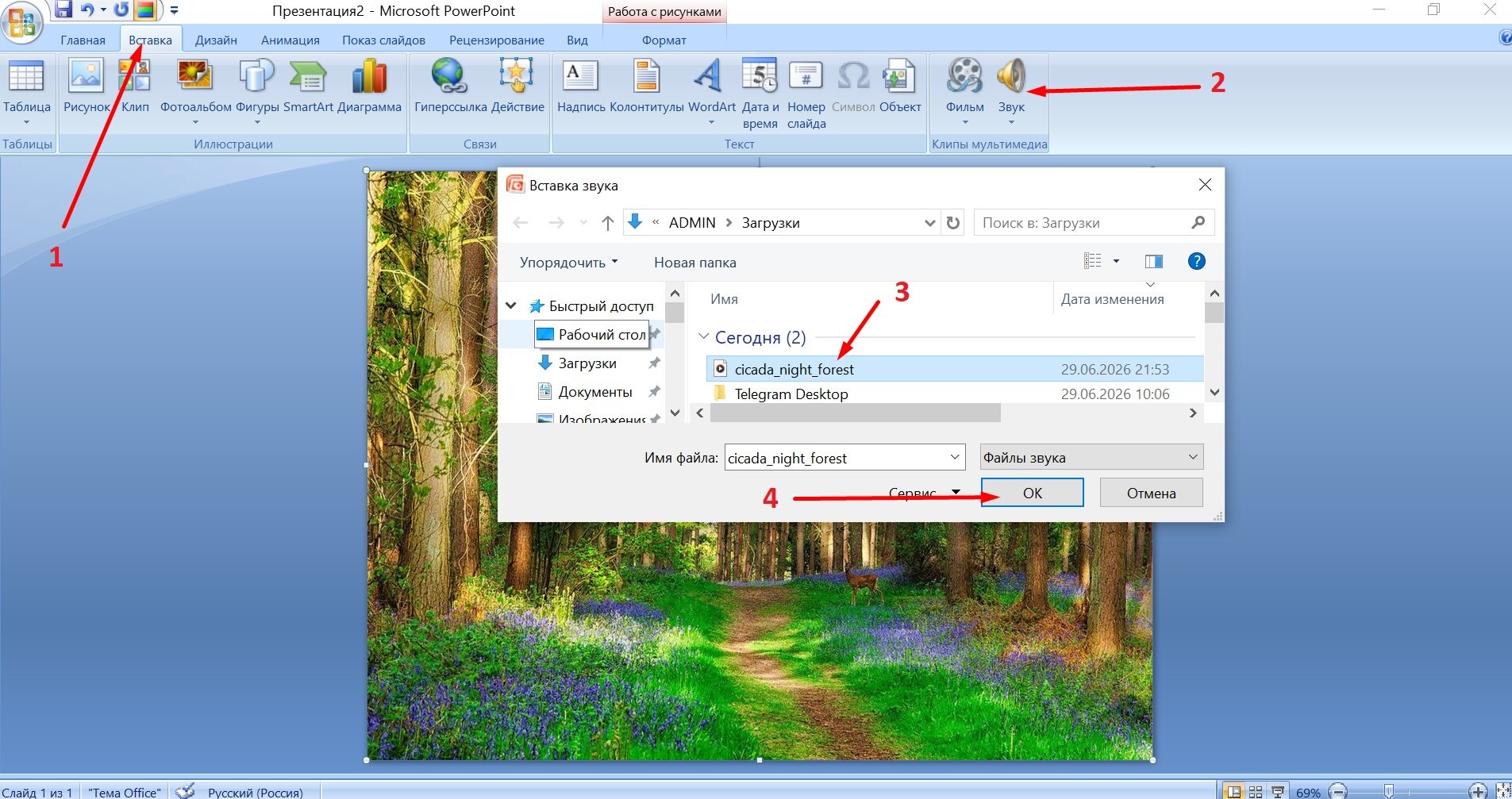
The process of inserting an audio file into a presentation takes less than a minute:
-
Open the slide where you want the track to start.
-
Go to the "Insert" tab on the top panel.
-
Click the Sound button → select Audio files on your computer.
-
Find the file you need and click "Insert".
-
Click on the speaker icon that appears on the slide to open the Playback tab.
-
Select the launch mode: Automatic or On Click.
One caveat about embedding the file. When you click “Insert,” PowerPoint copies the audio directly into the presentation file. Music will work on any computer without a “partner file” nearby. In the old version 2007, the program by default only links MP3 files, and does not embed (embedding by default appeared in version 2010) - more about this in the section about versions.
If you want to get a ready-made presentation with a professional design without any extra hassle, the Veonix team does turnkey presentations: from investment pitches to tender applications.
How to put music on all presentation slides
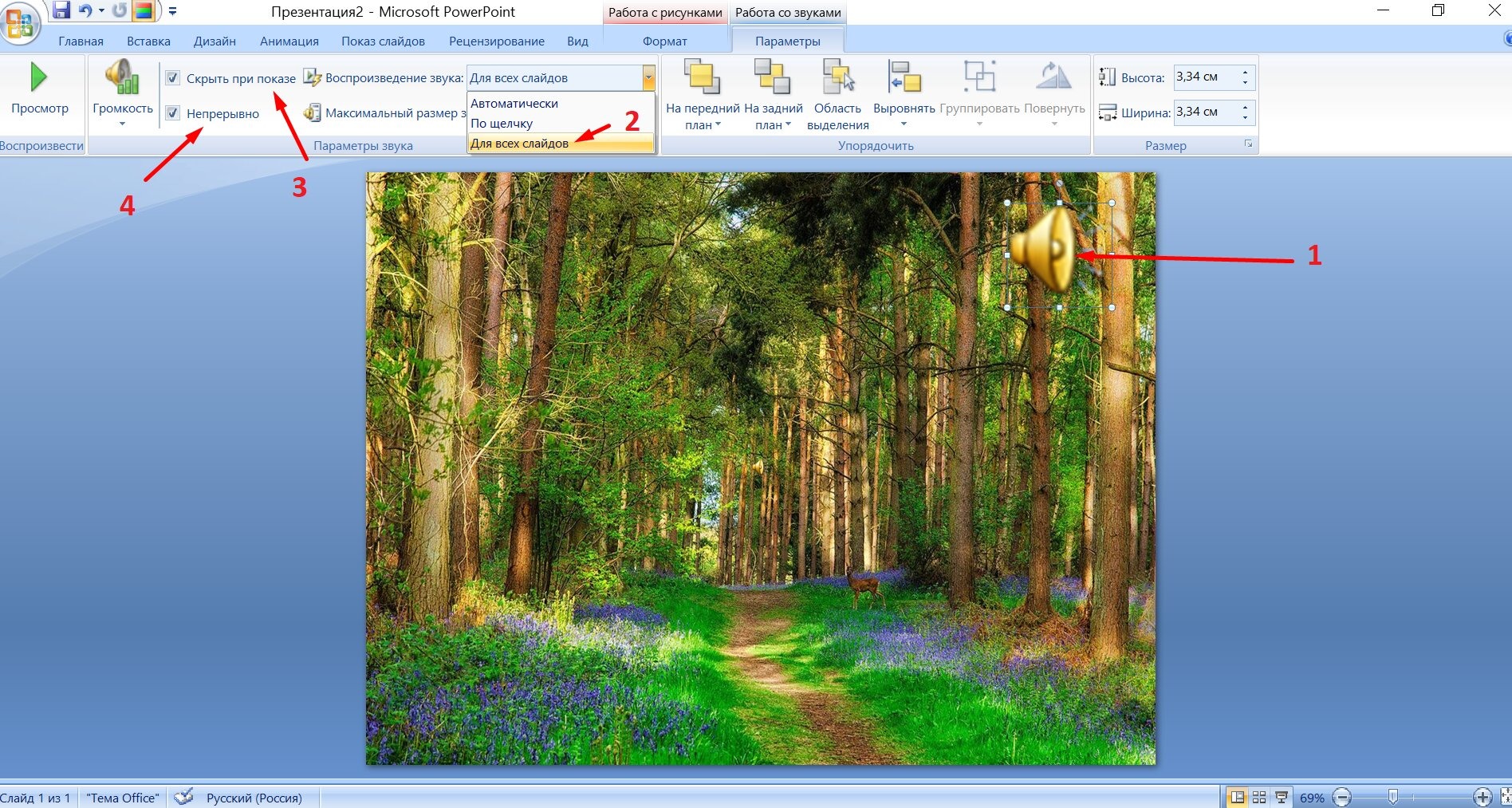
By default, a track only plays on the slide where you inserted it. The next slide is silence. To add music to all slides in a PowerPoint presentation, you need to adjust the playback settings.
The fastest way is the “Play in background” button in the “Playback” tab. One click - and the program itself sets the three necessary parameters: “For all slides”, “Continuous” and “Hide when shown”.
If there is no button or you want to configure it manually:
-
Select the sound icon on the slide.
-
Open the Playback tab.
-
Select Automatic from the Start menu.
-
Check the box “For all slides” - the track will not be interrupted during transitions.
-
Check the “Continuous” box - if the presentation is longer than the track, the music will go in a circle.
-
Check the “Hide when shown” checkbox and the speaker icon will disappear from the screen.
If you need background music for only one slide, just do not check the “For all slides” checkbox, and the track will stop itself when you change the slide. For a precise range, open the animation pane and manually specify which slide the audio should end on.
Setting up audio playback and editing in PowerPoint
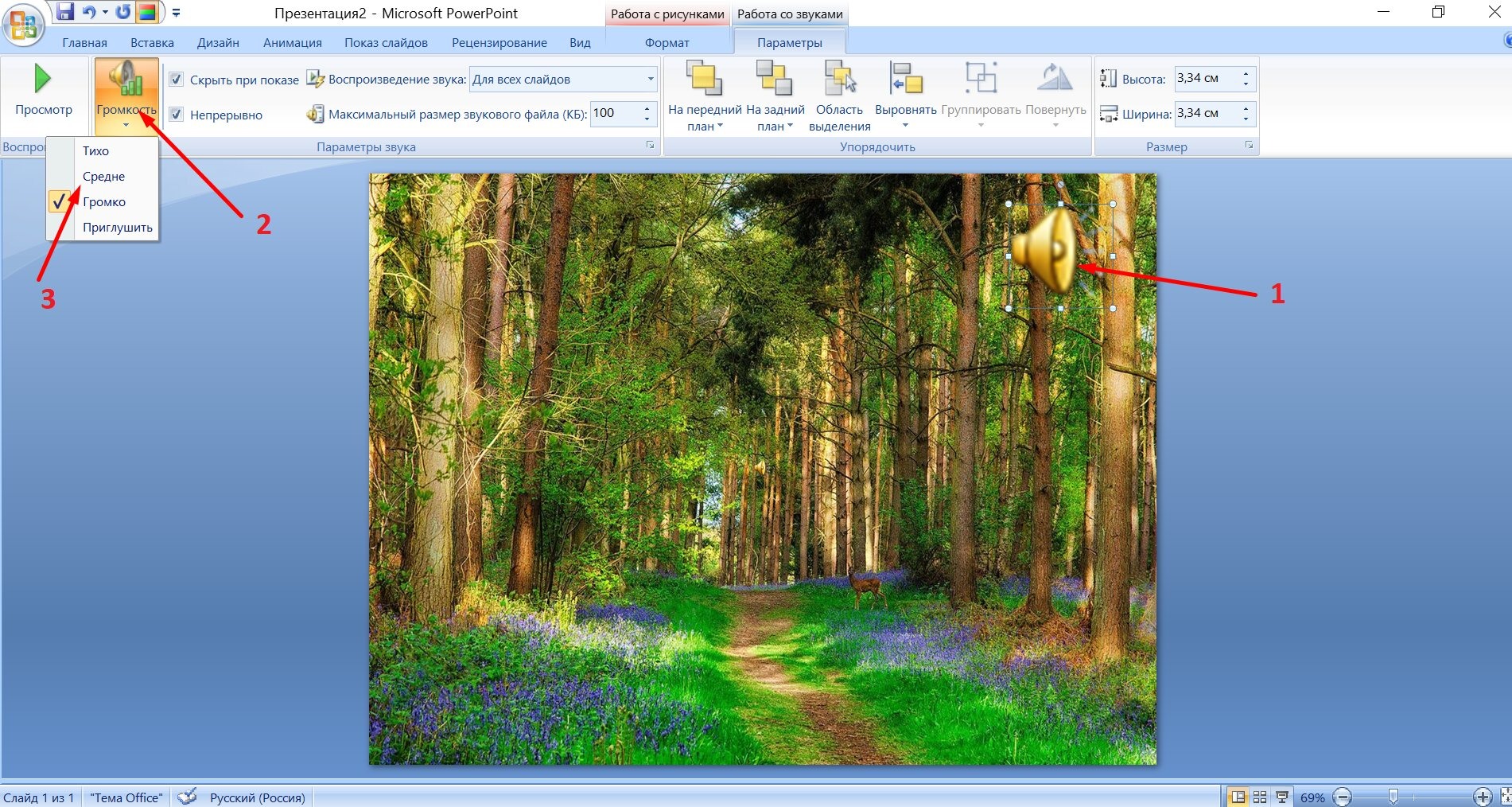
PowerPoint hides a few tools in the Playback tab that many people aren't aware of:
-
Trimming audio - the “Editing Audio” button: the green marker specifies the beginning, the red marker specifies the end. Take only the required fragment without touching the source file.
-
Fade-in / fade-out (smooth increase and decay of sound) - fields “Appearance duration” and “Disappearance duration”: set in seconds, the transitions become softer.
-
Volume - four options: “Low”, “Medium”, “High”, “Mute”. For background tracks, it is better to select “Low” so that the music does not interrupt the speaker.
-
Hide icon - check “Hide when showing”: removes the speaker icon during the slide show, while the music continues to play.
Features of inserting sound in different versions of PowerPoint
The insertion path is the same in all versions of Microsoft Office. But the supported formats and file behavior are different.
|
Version |
Audio formats |
Feature |
|
PowerPoint 2007 |
MP3, WAV, WMA |
The file is associated with the presentation (MP3), WAV is embedded only with low weight |
|
PowerPoint 2010–2016 |
MP3, WAV, M4A, WMA |
Files are embedded by default, you don’t need to attach anything additional. |
|
PowerPoint 2019 / Microsoft 365 |
MP3, WAV, M4A, FLAC, WMA |
Full format support + ability to insert stock audio from the library |
Users of version 2007 should remember: if you put a presentation on a flash drive without an audio file nearby, there will be no music on another computer. The solution is simple: click the round “Office Button” → “Publish” → “Pack for CD” - the program itself will collect the presentation with all the associated files into one folder.
Common audio problems in PowerPoint
Does the music not play or behave unpredictably? Almost always one of five situations:
-
Music does not play on another computer - in version 2007 (or older) the file was linked rather than embedded. Re-save the presentation using the built-in “Pack for CD” function so that the program tightens the audio.
-
The sound cuts out when changing a slide - the “For all slides” checkbox is not checked. Open the “Playback” tab and select it.
-
Incompatible format - Convert the file to MP3 using an online service such as Convertio.
-
The file is too heavy - replace the WAV with MP3 or compress the audio using Audacity (a free and open source audio editor).
-
The speaker icon sticks out on the slide - check the “Hide when shown” checkbox in the “Playback” tab.
Key Findings
-
How to insert music into PowerPoint: “Insert” → “Sound” → “Audio files on your computer” - the path is the same for all versions.
-
Take MP3 - light weight and compatible with all versions of the program without exception.
-
For continuous playback of the entire presentation, use the “Play in background” button in the “Playback” tab.
-
Before the show, check the sound on the device you will be performing from - it’s better to make sure in advance than to correct it in the hall.
The music in the presentation is quiet, but it does its job - the audience feels the mood even before the first slide. The main thing is to choose a track for the theme and don’t forget to remove the speaker icon from the screen.