Website admin panel explained: how to log in, avoid breaking things and keep it safe from hackers
A website admin panel explained: what it is, how to log in to WordPress, Joomla and Bitrix, types of admin panels, regaining access and security tips.

A website admin panel is a private area where the site owner manages content, settings and the look of the site without writing a single line of code. Think of it as a car’s dashboard: you never see the engine, but every control you need is right at hand. Every website built on a CMS (content management system) follows the same principle: there is a public side that visitors see, and a private side open only to the people who run the site.
Key facts:
- Every CMS-based website has its own admin panel — without it, you can’t change the content.
- Authorization: access is granted through a dedicated URL plus a username and password.
- WordPress is the most widely used CMS in the world, and its login lives at /wp-admin.
- Admin panels come in three types: off-the-shelf (CMS), custom-built and template-based — via website builders.
- The biggest threat to a website is unauthorized access to its admin panel, so security can’t wait.
What a website admin panel is and how it works
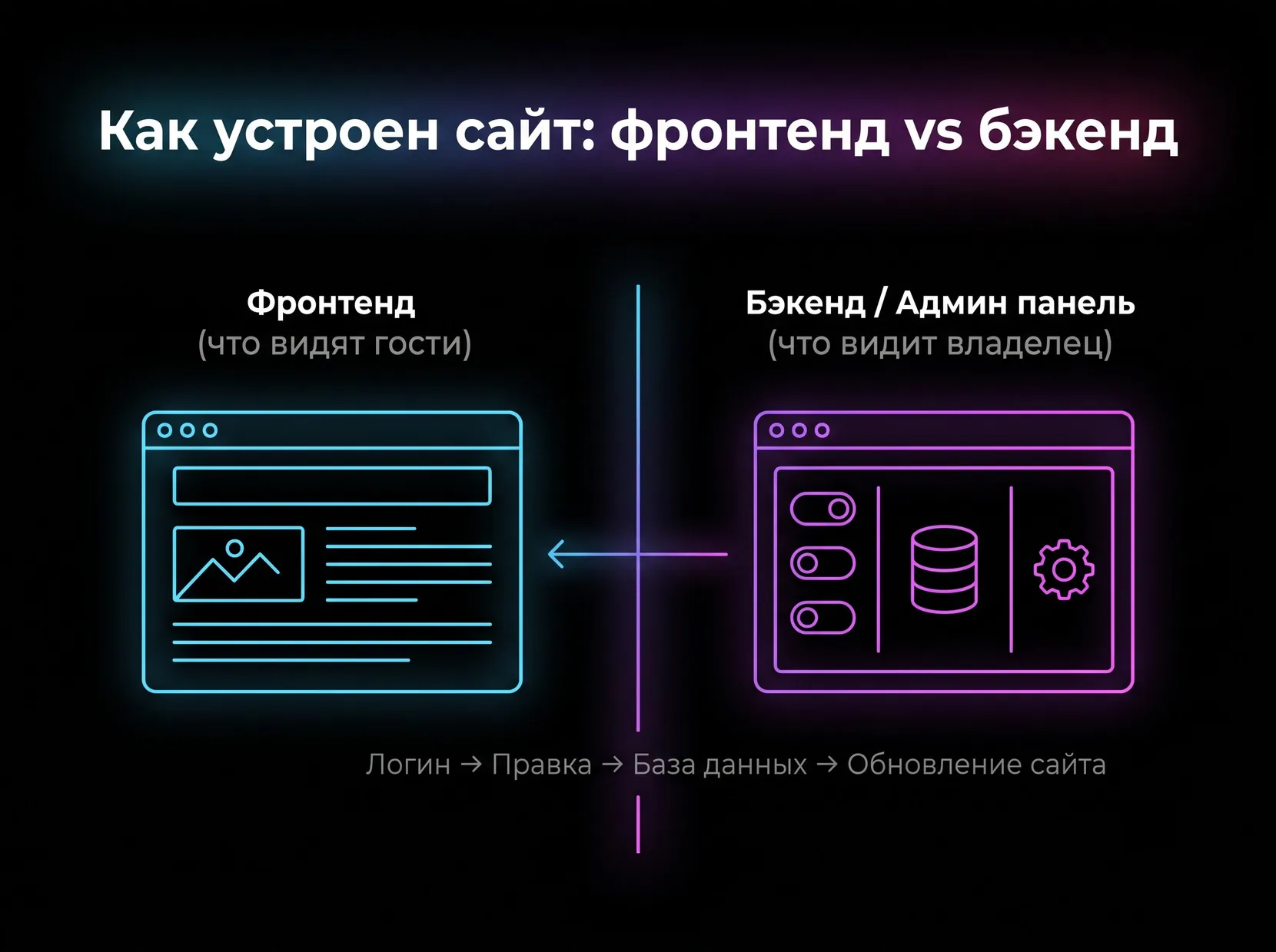
A website admin panel is the back end — the technical underside of the site, the exact opposite of the front end that visitors see. It’s where the owner edits copy, uploads photos, sets up menus and decides what goes on the homepage.
It works as a chain: you enter your username and password → the system checks them and lets you into the interface → you make an edit → it’s saved to the database → the site pulls in the new version and shows it to visitors. All of this runs on a server — a computer that stores the site’s files and serves them to everyone who follows a link.
Admin panels look different from one CMS to another: WordPress focuses on simplicity, Joomla offers more settings and flexibility, and Drupal is the heavyweight for complex corporate projects.
Admin panel features and key interface elements
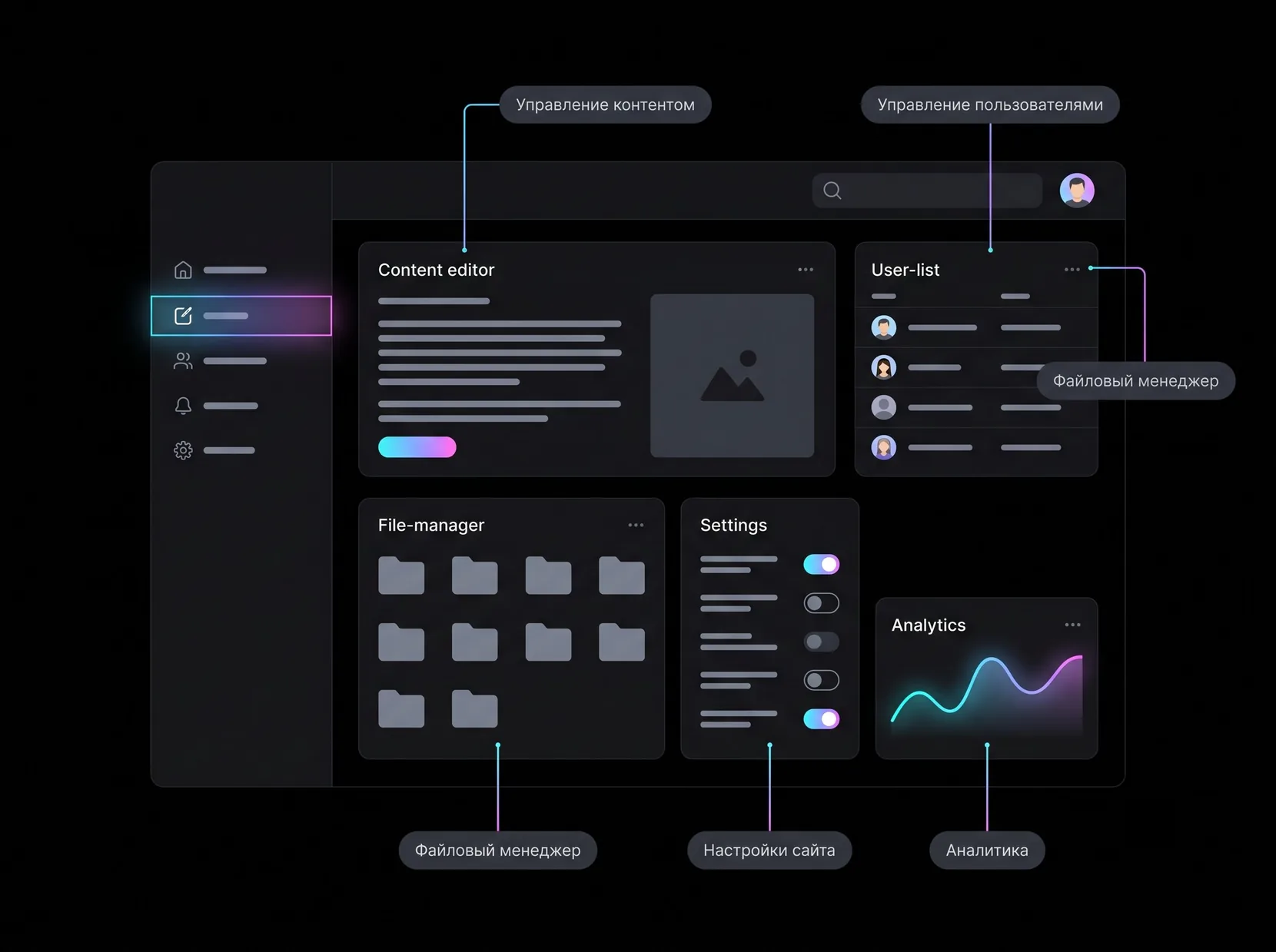
Every admin panel is built around a dashboard — the first screen you see after logging in, with every tool on the site just a click away. From there you edit articles, keep an eye on traffic and adjust the site’s appearance.
The core feature set looks like this:
- Content management — a visual text editor (WYSIWYG, “what you see is what you get”) plus a media library for images and video.
- User management — who has access to the site and with what rights: an author writes articles, an administrator can do everything.
- File manager — upload, delete and rename files on the server straight from the browser, no FTP client needed.
- Site settings — SEO parameters, appearance, and plugins or modules that extend functionality.
- Analytics — basic statistics on visits and activity; it won’t replace a full-fledged analytics tool such as Yandex Metrica, but it gives you the big picture.
This is where the differences between CMSs show: WordPress is extended with plugins, 1C-Bitrix with modules. The idea is the same; the tools just go by different names.
Types of admin panels: from WordPress to custom solutions
All admin panels fall into three camps: off-the-shelf CMSs, custom development for a specific project, and template-based website builders with limited functionality.
Off-the-shelf CMSs and their admin panels
An off-the-shelf CMS covers the needs of the vast majority of projects — there’s no point reinventing the wheel when it has already been built and road-tested by millions of websites.
| CMS | Complexity | Typical use | Admin panel highlight |
|---|---|---|---|
| WordPress | Low | Blogs, corporate websites, online stores | Intuitive interface, thousands of plugins |
| Joomla | Medium | Portals, sites with a complex structure | Flexible access rights settings |
| 1C-Bitrix | Medium to high | E-commerce in Russia | Deep integration with 1C and CRM systems |
| OpenCart | Low | Online stores | Focused purely on selling |
| Drupal | High | Corporate and government portals | Power for complex data structures |
| MODX | High | Projects with unique logic | Maximum freedom for developers |
WordPress holds around 60% of the entire CMS market, and that popularity is no accident: a low barrier to entry, a huge community and a ready-made solution for almost any task, from a blog to a full-scale online store.
Custom vs. template admin panels: which to choose
When a project’s business logic goes beyond a typical website — say, you need an internal service with non-standard processes — custom development takes the stage. The upside: the admin panel is tailored precisely to your tasks, with no unnecessary buttons. The downside: it costs more, takes longer, and if something breaks, you can’t manage without a developer.
Website builders such as Tilda and Wix take a different route: a visual editor instead of code, a simple, stripped-down admin panel and a minimum of settings. They’re a good choice for a landing page or a business-card site, but as soon as requirements grow more complex, a builder is no longer enough.
The rule of thumb is simple: for a one-page site, go with a builder; for a typical project, a CMS such as WordPress; for complex, non-standard logic, a custom build or 1C-Bitrix.
How to log in to a website admin panel
The login process is the same on any platform: find out which CMS the site runs on → find the right login URL → enter your username and password → sign in.
How to identify the CMS and find the admin login URL
If you didn’t build the site yourself and don’t know what it runs on, there are three ways to find out: use an online service such as BuiltWith or WhatCMS, which analyze the page code and tell you the platform; open the site’s source code (right-click → “View page source”) and look for telltale signs of the CMS; or check the URL structure — many CMSs have recognizable patterns in their addresses.
Once you know the CMS, the login is at a standard address:
| CMS | Login URL | Default username |
|---|---|---|
| WordPress | /wp-admin or /wp-login.php | admin (set during installation) |
| Joomla | /administrator | admin |
| 1C-Bitrix | /bitrix/admin | admin |
| OpenCart | /admin | depends on the installation |
| Drupal | /user/login | depends on the installation |
| MODX | /manager | depends on the installation |
| Tilda | Your account on tilda.cc | the email you signed up with |
If you can’t sort out access on your own and the site needs regular maintenance, the Veonix team offers end-to-end website improvements, including access setup.
What to do if you can’t log in to the admin panel
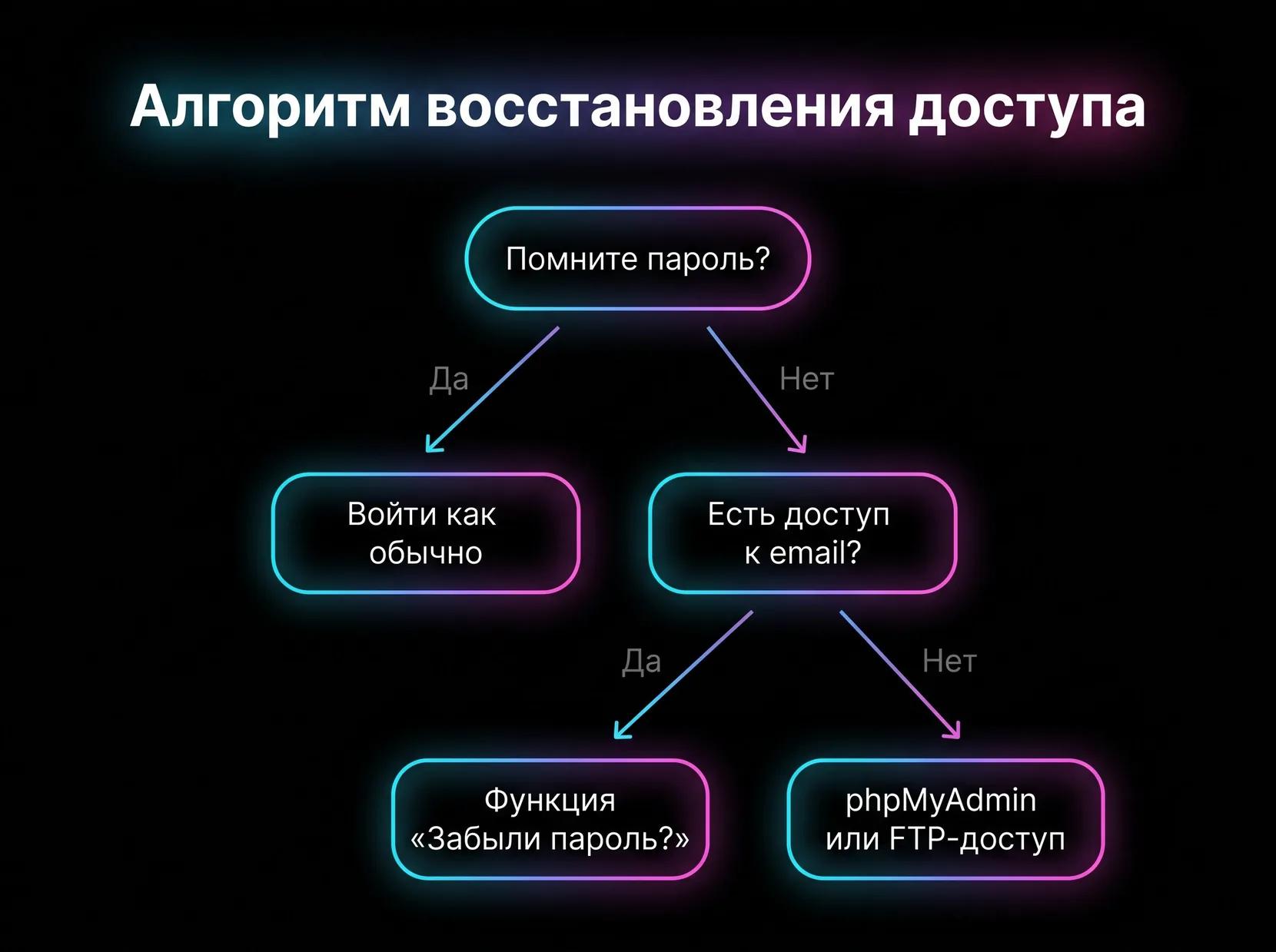
Eight times out of ten, the standard “Forgot password?” link solves the problem. Before you panic, check a few common causes:
- Forgotten password — the most common case, fixed by resetting it via email.
- Wrong URL — a typo in the address or an extra character.
- IP restrictions — some sites block logins from every address except approved ones, so you’re locked out from a new device or a different network.
- Technical glitch — a CMS update went wrong and login is temporarily unavailable.
If you’ve forgotten your password and can’t access your email, you’ll have to go in through the database using phpMyAdmin (a browser-based tool for managing MySQL). In WordPress, this is done with an SQL query such as UPDATE wp_users SET user_pass = MD5('new_password') WHERE user_login = 'admin', which overwrites the password directly in the users table.
The second option is to edit the configuration files via FTP access to the server. Neither method is technically difficult, but both call for care: always make a backup before touching the database — a single misplaced comma in a query can bring the whole site down.
Admin panel security and getting the most out of it
The admin login is the main entry point for attackers: 90% of website hacks start with an attempt to guess or steal admin credentials, not with sophisticated technical exploits. Protecting that entry point is the bare minimum for any live website.
Protecting your admin panel
The basic security formula is simple: a strong password plus two-factor authentication plus regular CMS updates. Here’s an extended seven-point checklist:
- Strong password — at least 12 characters, mixing upper- and lowercase letters, numbers and special characters.
- Two-factor authentication — each login is confirmed with a code from an app or an SMS. Even a stolen password is useless without the second factor.
- IP-based access restrictions — logins are allowed only from specific addresses; everything else is cut off automatically.
- Changing the default admin URL — attackers try /wp-admin and similar addresses first, so a non-standard path reduces the number of automated attacks.
- Security plugins — for WordPress, Wordfence or similar solutions that catch suspicious activity in real time.
- Regular backups — a copy of the site in case something goes wrong, whatever the cause.
- Timely updates to the CMS, plugins and modules — most vulnerabilities are closed by updates, and delays here are costly.
A few practical tips beyond the list:
- don’t keep the username admin — it’s the first thing automated scripts try;
- check the login logs from time to time for unfamiliar sign-in attempts;
- set up email alerts for suspicious activity so you hear about a problem before it turns into a disaster.
Technology in this area keeps moving: control panels are gradually gaining AI assistants that automate routine tasks, interfaces are being adapted for mobile devices, and settings are being personalized for each user.
A webmaster who keeps these rules in check cuts the risk of a hack many times over — and the admin panel stays what it should be: a convenient tool, not an open door for strangers. If you’d rather hand site security and setup to professionals, website development and improvements at Veonix cover this part of the work too.
Frequently asked questions
Can you use a website without access to its admin panel?
Yes, if all you need is to view the existing content. But you can’t change copy, add products or edit the structure without logging in to the admin panel: every change goes through it.
How many people can work in the same admin panel at once?
There’s usually no limit on the number of users: CMSs such as WordPress or Bitrix support any number of accounts with different levels of permissions — from a full administrator to an author who only sees their own articles.
What happens if you accidentally delete an important file in the admin file manager?
A backup will help you restore the file, which is why regular backups are part of the basic security checklist. Without one, recovery is only possible through your hosting provider, and only if it keeps its own server snapshots.
Is logging in to the admin panel on a phone any different from logging in on a computer?
The URL, username and password are exactly the same. The only difference is the interface — most modern CMSs adapt the admin panel to small screens, although complex tasks such as editing code are easier on a computer.
Does the admin panel need extra protection if the site already has an SSL certificate?
An SSL certificate encrypts data in transit between the browser and the server, but it doesn’t protect against password guessing or the use of stolen credentials. These are different layers of protection, and one doesn’t replace the other — you need both.